> ## Documentation Index
> Fetch the complete documentation index at: https://docs.zeroruntime.ai/llms.txt
> Use this file to discover all available pages before exploring further.
# Create an Agent
> Create an agent from a starter template or from scratch, and manage it from the Agents list.
## Create a new agent
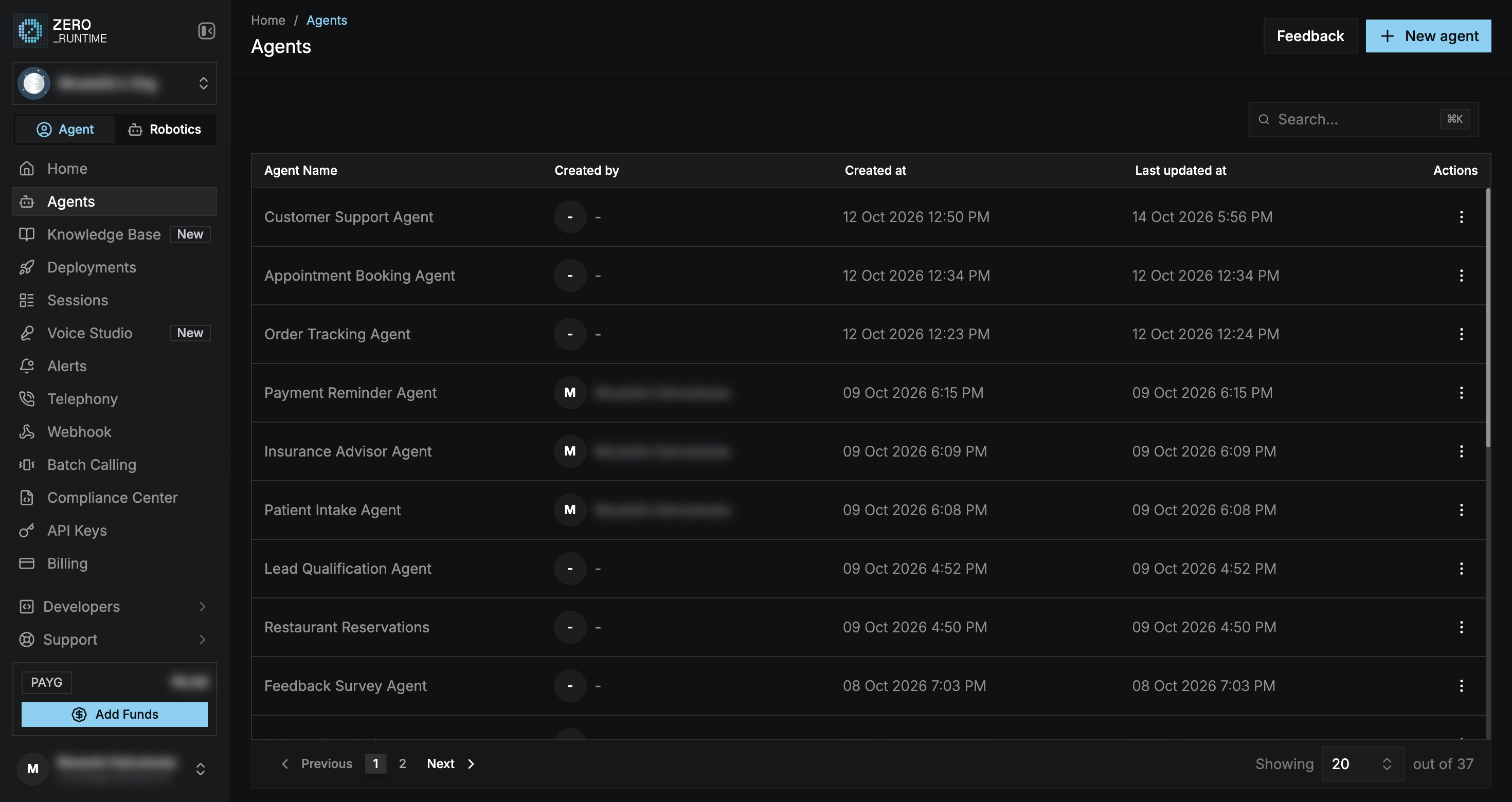
In the dashboard, switch to the **Agent** tab in the sidebar and select **Agents**. Then select **New agent**.
 Pick a starter template or **Start from scratch**. Templates are grouped by industry (for example BFSI, Healthcare, and Retail & E-Commerce). Use the **Provider** and **Language** filters or search to narrow the list.
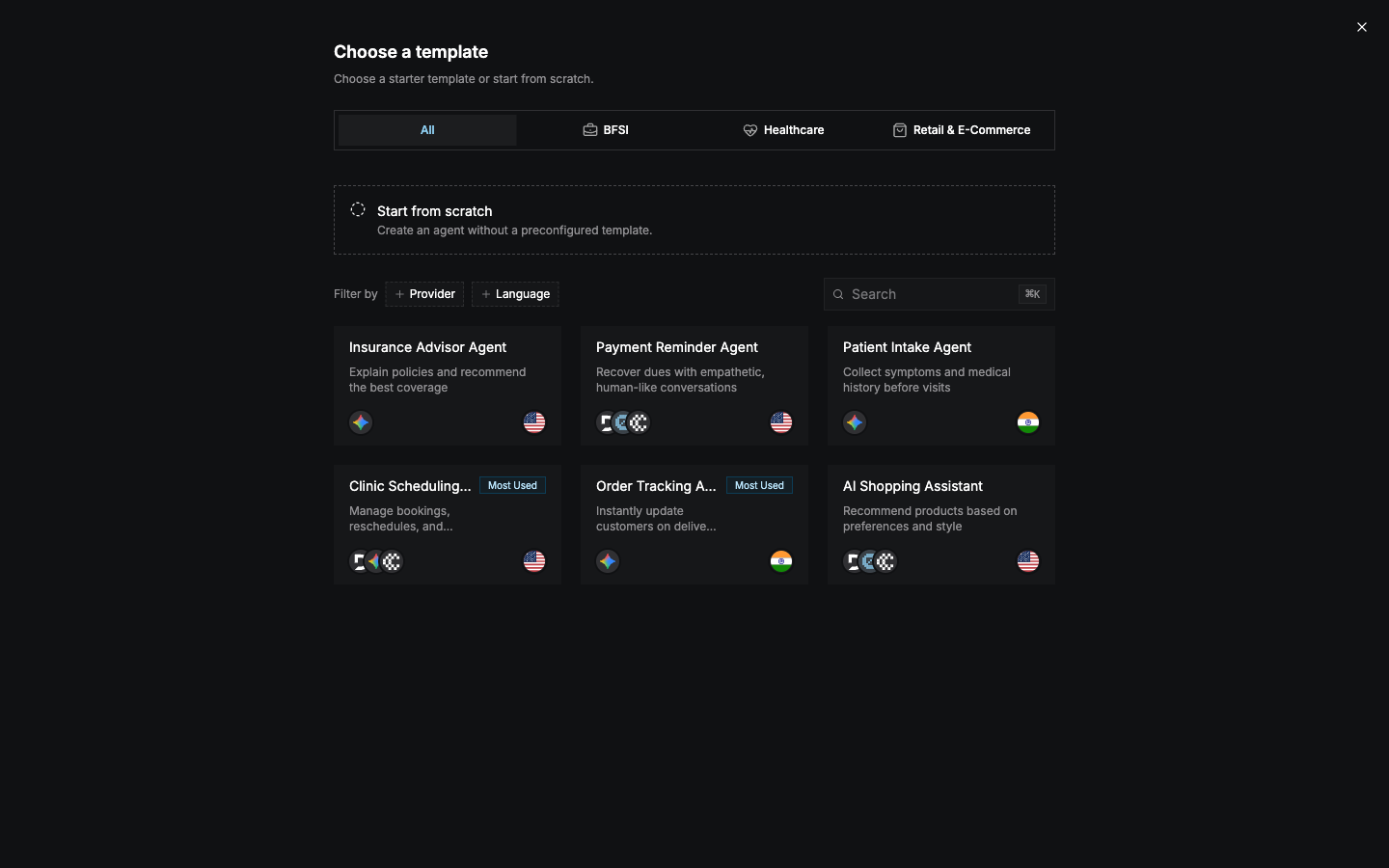 Each card shows the models (STT, LLM, and TTS providers) and the languages the template is set up for.
Enter an **Agent Name** (up to 40 characters) and select **Create Agent**. The builder opens with the template's configuration on the **Main** branch.
**Agent Type** offers **Single Agent** today. **Multi-Agent System** is coming soon.
A template only gives you a starting configuration. You can change every part of it afterwards.
## Manage agents
The Agents list shows each agent's name, creator, and created and updated times. Select a row to open it in the builder, or open the row's **⋮** menu:
| Action | What it does |
| - | - |
| **Copy Agent ID** | Copies the ID used with the API and SDKs. |
| **View all branches** | Opens the agent's **Branches** tab. |
| **Clone agent** | Creates a copy with the same configuration and "copy" appended to its name. |
| **View Deployment** | Opens the Deployments page. |
| **View Session** | Opens the Sessions page. |
| **Delete agent** | Permanently deletes the agent and all of its data. This can't be undone. |
The same actions are available from the **⋯** menu in the builder header.
You can also rename an agent in the builder by selecting its name in the header.
This documentation is built and hosted on [Mintlify](https://mintlify.com), a developer documentation platform.
Each card shows the models (STT, LLM, and TTS providers) and the languages the template is set up for.
Enter an **Agent Name** (up to 40 characters) and select **Create Agent**. The builder opens with the template's configuration on the **Main** branch.
**Agent Type** offers **Single Agent** today. **Multi-Agent System** is coming soon.
A template only gives you a starting configuration. You can change every part of it afterwards.
## Manage agents
The Agents list shows each agent's name, creator, and created and updated times. Select a row to open it in the builder, or open the row's **⋮** menu:
| Action | What it does |
| - | - |
| **Copy Agent ID** | Copies the ID used with the API and SDKs. |
| **View all branches** | Opens the agent's **Branches** tab. |
| **Clone agent** | Creates a copy with the same configuration and "copy" appended to its name. |
| **View Deployment** | Opens the Deployments page. |
| **View Session** | Opens the Sessions page. |
| **Delete agent** | Permanently deletes the agent and all of its data. This can't be undone. |
The same actions are available from the **⋯** menu in the builder header.
You can also rename an agent in the builder by selecting its name in the header.
This documentation is built and hosted on [Mintlify](https://mintlify.com), a developer documentation platform.