> ## Documentation Index
> Fetch the complete documentation index at: https://docs.zeroruntime.ai/llms.txt
> Use this file to discover all available pages before exploring further.
# Build a Telephony Agent with Zero Runtime
> Handle inbound and outbound PSTN calls via SIP with an AI voice agent.
## Architecture
PSTN callers dial your number; your SIP provider forwards the call to the Zero Runtime SIP Gateway, and a routing rule routes it to your self-hosted agent by matching its `agent_id`.\
For outbound calls, your agent dials through an outbound gateway to the SIP provider, which places the PSTN call.
 ## Prerequisites
* **Python 3.11 or higher.**
* A ZRT Auth token (`ZRT_AUTH_TOKEN`). Generate one in the [Zero Runtime Dashboard](https://app.zeroruntime.ai/).
* A **SIP provider** (such as [Twilio](https://www.twilio.com/)) with a phone number, plus access to its origination and termination settings.
Use Python 3.11 or higher, then install the Zero Runtime Agents SDK. Create and activate a virtual environment, then install `zrt` and `python-dotenv`. Every provider plugin ships with `zrt`.
```bash uv theme={null}
uv venv --python 3.11
source .venv/bin/activate # macOS/Linux
.\.venv\Scripts\activate # Windows
```
```bash pip theme={null}
python3.11 -m venv venv
source venv/bin/activate # macOS/Linux
.\venv\Scripts\activate # Windows
```
New to uv? See the [uv install guide](https://docs.astral.sh/uv/getting-started/installation/).
```bash uv theme={null}
uv pip install zrt python-dotenv
```
```bash pip theme={null}
pip install zrt python-dotenv
```
Store API keys and tokens in a `.env` file in your project root.
```shell title=".env" theme={null}
# The Inference gateway authenticates with your Zero Runtime token -
# no separate STT, LLM, or TTS provider keys needed.
# Option A: pre-generated token
ZRT_AUTH_TOKEN = "ZRT Auth token"
# Option B: SDK auto-generates token (omit ZRT_AUTH_TOKEN)
# ZRT_API_KEY = "Your Zero Runtime API Key"
# ZRT_SECRET_KEY = "Your Zero Runtime Secret Key"
```
```shell title=".env" theme={null}
# Option A: pre-generated token
ZRT_AUTH_TOKEN="ZRT Auth token"
# Option B: SDK auto-generates token (omit ZRT_AUTH_TOKEN)
# ZRT_API_KEY="Your Zero Runtime API Key"
# ZRT_SECRET_KEY="Your Zero Runtime Secret Key"
# Used by GeminiRealtime
GOOGLE_API_KEY="Google Live API Key"
```
Get a Gemini key from [Google AI Studio](https://aistudio.google.com/app/apikey). For Zero Runtime, use an auth token from the [Zero Runtime Dashboard](https://app.zeroruntime.ai/api-keys) or an API key + secret. Follow the [guide](/authentication).
For telephony, the agent must register itself so calls can be routed to it. `zrt.serve()` registers the agent under its `agent_id` automatically. The agent half is the same as any voice agent. Pick your language.
For telephony, the agent must register itself with Zero Runtime so calls can be routed to it. Give the agent a unique `agent_id` and start it with `zrt.serve()`, which registers it automatically. Inbound calls arrive through routing, so there is no need to self-invoke a session.
```python title="main.py" theme={null}
import logging
import zrt
from zrt import Agent, Pipeline
from zrt.plugins import SileroVAD, TurnDetector
from zrt.plugins import CartesiaSTT, GoogleLLM, CartesiaTTS
from zrt.inference import AICousticsDenoise
from dotenv import load_dotenv
logging.basicConfig(level=logging.INFO)
load_dotenv()
AGENT_ID = "MyTelephonyAgent" # unique ID used for call routing
pipeline = Pipeline(
stt=CartesiaSTT(model="ink-2"),
llm=GoogleLLM(model="gemini-2.5-flash"),
tts=CartesiaTTS(model="sonic-2"),
vad=SileroVAD(threshold=0.35),
turn_detector=TurnDetector(model="echo-large"),
denoise=AICousticsDenoise(model_id="quail-vf-2.2-l-16khz"),
)
class TelephonyAgent(Agent):
def __init__(self):
super().__init__(
agent_id=AGENT_ID,
instructions="You are a helpful AI assistant that answers phone calls. Keep your responses concise and friendly.",
pipeline=pipeline,
)
async def on_enter(self):
await self.session.say("Hello! I'm your AI telephony assistant. How can I help you today?")
async def on_exit(self):
await self.session.say("Goodbye! It was great talking with you!")
def on_ready():
logging.info("Agent registered as %s and ready for calls.", AGENT_ID)
if __name__ == "__main__":
# Pass the class itself (not an instance): serve() builds a fresh TelephonyAgent +
# pipeline per call, which is required for correct per-call state under concurrent calls.
zrt.serve(TelephonyAgent, on_ready=on_ready)
```
```python title="main.py" theme={null}
import os, logging
import zrt
from zrt import Agent, Pipeline
from zrt.plugins import GeminiRealtime, GeminiLiveConfig
from dotenv import load_dotenv
logging.basicConfig(level=logging.INFO)
load_dotenv()
AGENT_ID = "MyTelephonyAgent" # unique ID used for call routing
model = GeminiRealtime(
api_key=os.getenv("GOOGLE_API_KEY"),
config=GeminiLiveConfig(
model="gemini-3.1-flash-live-preview",
voice="Leda",
response_modalities=["AUDIO"],
),
)
pipeline = Pipeline(llm=model)
class TelephonyAgent(Agent):
def __init__(self):
super().__init__(
agent_id=AGENT_ID,
instructions="You are a helpful AI assistant that answers phone calls. Keep your responses concise and friendly.",
pipeline=pipeline,
)
async def on_enter(self):
await self.session.say("Hello! I'm your real-time assistant. How can I help you today?")
async def on_exit(self):
await self.session.say("Goodbye! It was great talking with you!")
def on_ready():
logging.info("Agent registered as %s and ready for calls.", AGENT_ID)
if __name__ == "__main__":
# Pass the class itself (not an instance): serve() builds a fresh TelephonyAgent +
# pipeline per call, which is required for correct per-call state under concurrent calls.
zrt.serve(TelephonyAgent, on_ready=on_ready)
```
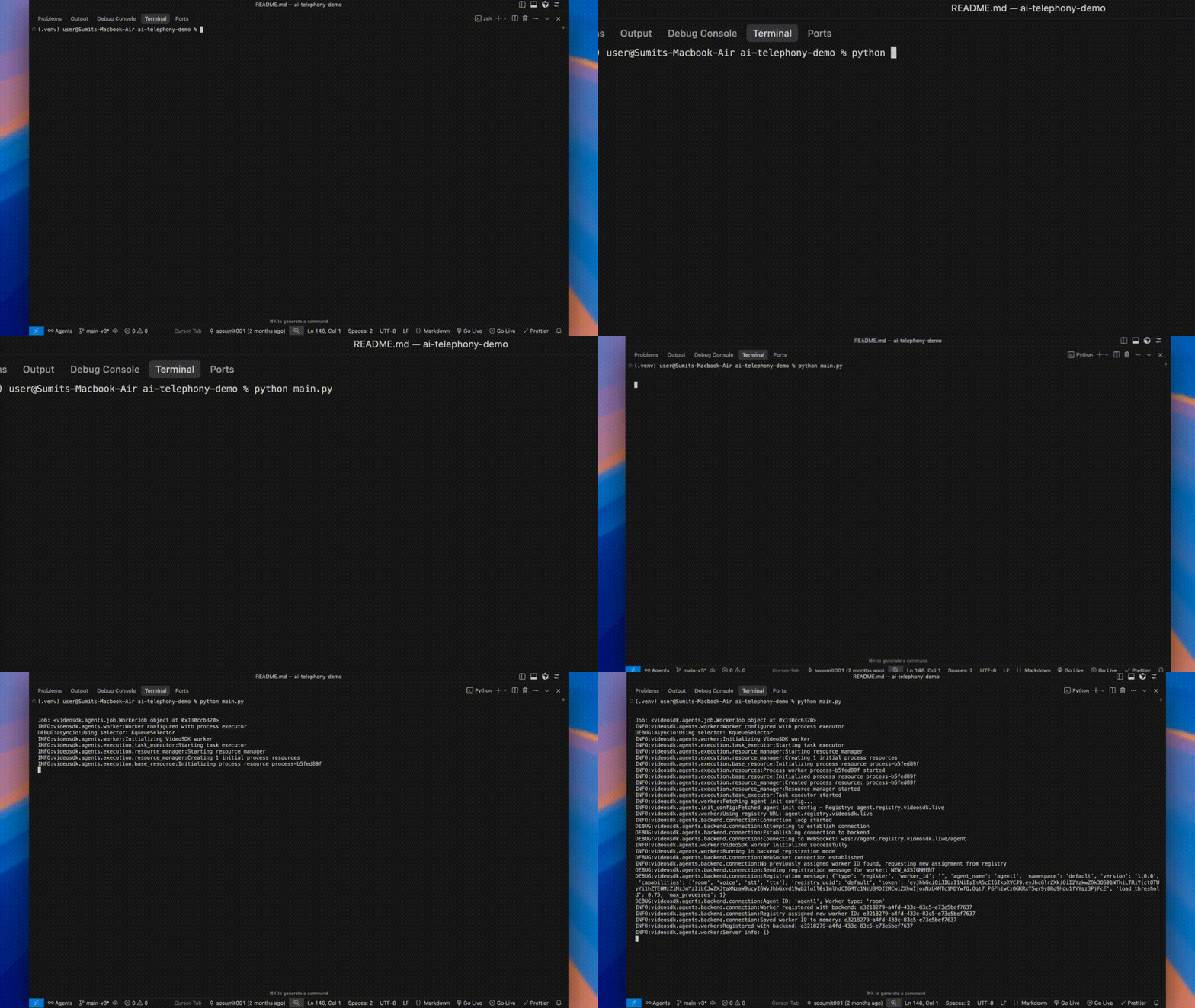
With your `.env` configured and dependencies installed, run the agent:
```bash uv theme={null}
uv run python main.py
```
```bash pip theme={null}
python main.py
```
Keep the process running. It registers with Zero Runtime using the ID `MyTelephonyAgent`.
## Prerequisites
* **Python 3.11 or higher.**
* A ZRT Auth token (`ZRT_AUTH_TOKEN`). Generate one in the [Zero Runtime Dashboard](https://app.zeroruntime.ai/).
* A **SIP provider** (such as [Twilio](https://www.twilio.com/)) with a phone number, plus access to its origination and termination settings.
Use Python 3.11 or higher, then install the Zero Runtime Agents SDK. Create and activate a virtual environment, then install `zrt` and `python-dotenv`. Every provider plugin ships with `zrt`.
```bash uv theme={null}
uv venv --python 3.11
source .venv/bin/activate # macOS/Linux
.\.venv\Scripts\activate # Windows
```
```bash pip theme={null}
python3.11 -m venv venv
source venv/bin/activate # macOS/Linux
.\venv\Scripts\activate # Windows
```
New to uv? See the [uv install guide](https://docs.astral.sh/uv/getting-started/installation/).
```bash uv theme={null}
uv pip install zrt python-dotenv
```
```bash pip theme={null}
pip install zrt python-dotenv
```
Store API keys and tokens in a `.env` file in your project root.
```shell title=".env" theme={null}
# The Inference gateway authenticates with your Zero Runtime token -
# no separate STT, LLM, or TTS provider keys needed.
# Option A: pre-generated token
ZRT_AUTH_TOKEN = "ZRT Auth token"
# Option B: SDK auto-generates token (omit ZRT_AUTH_TOKEN)
# ZRT_API_KEY = "Your Zero Runtime API Key"
# ZRT_SECRET_KEY = "Your Zero Runtime Secret Key"
```
```shell title=".env" theme={null}
# Option A: pre-generated token
ZRT_AUTH_TOKEN="ZRT Auth token"
# Option B: SDK auto-generates token (omit ZRT_AUTH_TOKEN)
# ZRT_API_KEY="Your Zero Runtime API Key"
# ZRT_SECRET_KEY="Your Zero Runtime Secret Key"
# Used by GeminiRealtime
GOOGLE_API_KEY="Google Live API Key"
```
Get a Gemini key from [Google AI Studio](https://aistudio.google.com/app/apikey). For Zero Runtime, use an auth token from the [Zero Runtime Dashboard](https://app.zeroruntime.ai/api-keys) or an API key + secret. Follow the [guide](/authentication).
For telephony, the agent must register itself so calls can be routed to it. `zrt.serve()` registers the agent under its `agent_id` automatically. The agent half is the same as any voice agent. Pick your language.
For telephony, the agent must register itself with Zero Runtime so calls can be routed to it. Give the agent a unique `agent_id` and start it with `zrt.serve()`, which registers it automatically. Inbound calls arrive through routing, so there is no need to self-invoke a session.
```python title="main.py" theme={null}
import logging
import zrt
from zrt import Agent, Pipeline
from zrt.plugins import SileroVAD, TurnDetector
from zrt.plugins import CartesiaSTT, GoogleLLM, CartesiaTTS
from zrt.inference import AICousticsDenoise
from dotenv import load_dotenv
logging.basicConfig(level=logging.INFO)
load_dotenv()
AGENT_ID = "MyTelephonyAgent" # unique ID used for call routing
pipeline = Pipeline(
stt=CartesiaSTT(model="ink-2"),
llm=GoogleLLM(model="gemini-2.5-flash"),
tts=CartesiaTTS(model="sonic-2"),
vad=SileroVAD(threshold=0.35),
turn_detector=TurnDetector(model="echo-large"),
denoise=AICousticsDenoise(model_id="quail-vf-2.2-l-16khz"),
)
class TelephonyAgent(Agent):
def __init__(self):
super().__init__(
agent_id=AGENT_ID,
instructions="You are a helpful AI assistant that answers phone calls. Keep your responses concise and friendly.",
pipeline=pipeline,
)
async def on_enter(self):
await self.session.say("Hello! I'm your AI telephony assistant. How can I help you today?")
async def on_exit(self):
await self.session.say("Goodbye! It was great talking with you!")
def on_ready():
logging.info("Agent registered as %s and ready for calls.", AGENT_ID)
if __name__ == "__main__":
# Pass the class itself (not an instance): serve() builds a fresh TelephonyAgent +
# pipeline per call, which is required for correct per-call state under concurrent calls.
zrt.serve(TelephonyAgent, on_ready=on_ready)
```
```python title="main.py" theme={null}
import os, logging
import zrt
from zrt import Agent, Pipeline
from zrt.plugins import GeminiRealtime, GeminiLiveConfig
from dotenv import load_dotenv
logging.basicConfig(level=logging.INFO)
load_dotenv()
AGENT_ID = "MyTelephonyAgent" # unique ID used for call routing
model = GeminiRealtime(
api_key=os.getenv("GOOGLE_API_KEY"),
config=GeminiLiveConfig(
model="gemini-3.1-flash-live-preview",
voice="Leda",
response_modalities=["AUDIO"],
),
)
pipeline = Pipeline(llm=model)
class TelephonyAgent(Agent):
def __init__(self):
super().__init__(
agent_id=AGENT_ID,
instructions="You are a helpful AI assistant that answers phone calls. Keep your responses concise and friendly.",
pipeline=pipeline,
)
async def on_enter(self):
await self.session.say("Hello! I'm your real-time assistant. How can I help you today?")
async def on_exit(self):
await self.session.say("Goodbye! It was great talking with you!")
def on_ready():
logging.info("Agent registered as %s and ready for calls.", AGENT_ID)
if __name__ == "__main__":
# Pass the class itself (not an instance): serve() builds a fresh TelephonyAgent +
# pipeline per call, which is required for correct per-call state under concurrent calls.
zrt.serve(TelephonyAgent, on_ready=on_ready)
```
With your `.env` configured and dependencies installed, run the agent:
```bash uv theme={null}
uv run python main.py
```
```bash pip theme={null}
python main.py
```
Keep the process running. It registers with Zero Runtime using the ID `MyTelephonyAgent`.
 1. Go to the [Zero Runtime Dashboard](https://app.zeroruntime.ai/).
2. Click **Add Number**.
3. Click **Configure SIP**.
4. Give a name and add your phone number.
Set up two gateways and point your SIP provider (Twilio in this example) at them so calls flow both ways. Use the Dashboard or the API for each.
**1. Inbound gateway**: the entry point for incoming calls.
1. Copy the **Inbound URL** from the Zero Runtime dashboard.
2. Go to **Twilio** and create a new SIP Trunk.
3. Go to the Origination section, paste the Inbound URL there, and save it.
```bash theme={null}
curl --request POST \
--url https://api.videosdk.live/v2/sip/inbound-gateways \
--header 'Authorization: YOUR_ZRT_AUTH_TOKEN' \
--header 'Content-Type: application/json' \
--data '{ "name": "My Inbound Gateway", "numbers": ["+1234567890"] }'
```
Then set the **origination URI** of your Twilio SIP trunk to the inbound gateway hostname (shown in the dashboard), e.g. `sip:9WXXXXXXX.sip.videosdk.live`.
**2. Outbound gateway**: lets the agent dial out to the PSTN.
1. In Twilio, open the same SIP Trunk and go to the **Termination** section. Create a **Termination URI** and add username/password credentials.
2. Back in the Zero Runtime Dashboard, open the outbound gateway configuration.
3. Paste the Twilio **Termination URI** as the address, add the same **username/password** credentials, and save.
```bash theme={null}
curl --request POST \
--url https://api.videosdk.live/v2/sip/outbound-gateways \
--header 'Authorization: YOUR_ZRT_AUTH_TOKEN' \
--header 'Content-Type: application/json' \
--data '{
"name": "My Outbound Gateway",
"numbers": ["+12065551234"],
"address": "sip.myprovider.com",
"transport": "udp",
"auth": { "username": "your-username", "password": "your-password" }
}'
```
Set `address` and `auth` to match your Twilio **Termination URI** and credentials so outbound calls reach the PSTN.
Connect the inbound gateway to your agent by ID. The agent ID must match the `agent_id` you pass to your agent (registered by `zrt.serve()`).
1. From your inbound gateway, click **Configure rule**, then **Create new routing rule**.
2. Enter a **Routing Rule Name** and select **API Key** authentication.
3. Choose the **Call Direction** (Inbound).
4. Enter the **Phone Number** and select a **Room Type**.
5. Enter the **Agent ID** (e.g. `MyTelephonyAgent`) and click **Save**.
```bash theme={null}
curl --request POST \
--url https://api.videosdk.live/v2/sip/routing-rules \
--header 'Authorization: YOUR_ZRT_AUTH_TOKEN' \
--header 'Content-Type: application/json' \
--data '{
"gatewayId": "gateway_in_123456789",
"name": "Support Line Rule",
"numbers": ["+1234567890"],
"dispatch": "agent",
"agentType": "self_hosted",
"agentId": "MyTelephonyAgent"
}'
```
Make sure your **main.py** is running locally before configuring the telephony settings. The agent must be active to receive incoming calls.
Dial your provider's phone number from any phone. The worker waits for the caller to join, then greets you as soon as the call connects.
Trigger a call from the agent. Replace `routingRuleId` with your rule ID. Use **curl** or any **API client** to make a POST request to the Zero Runtime API.
Replace \$YOUR\_TOKEN and the routingRuleId with your own.
```bash theme={null}
curl --request POST \
--url https://api.videosdk.live/v2/sip/call \
--header 'Authorization: YOUR_ZRT_AUTH_TOKEN' \
--header 'Content-Type: application/json' \
--data '{
"sipCallFrom": "+14155550100",
"sipCallTo": "+14155550199",
"routingRuleId": "rr_2554md"
}'
```
For **optimal performance**, run your agent in the same geographic region as your SIP provider (e.g., US East for Twilio, US West for Telnyx, Europe for Plivo). This reduces latency and improves call quality.
## Verify
* The agent registers under the ID `MyTelephonyAgent` and the worker process stays running.
* An incoming call reaches the agent and you hear the greeting.
* Outbound calls dial the target number through your outbound gateway.
**Common errors:**
* **`agent_id` mismatch:** the routing rule's `agentId` must exactly match the agent's `agent_id`.
* **Agent not running:** the agent process must be alive to accept the inbound call.
* **SIP misconfiguration:** the provider's origination and termination URIs must point at your Zero Runtime gateways.
## What's Next
Explore SIP connect, call routing, and integrations.
Handle call transfer, DTMF events, and webhooks.
## References
* [Inbound Gateway API](https://docs.videosdk.live/api-reference/realtime-communication/sip/inbound-gateway/create-inbound-gateway)
* [Outbound Gateway API](https://docs.videosdk.live/api-reference/realtime-communication/sip/outbound-gateway/create-outbound-gateway)
* [Routing Rule API](https://docs.videosdk.live/api-reference/realtime-communication/sip/routing-rules/create-routing-rule)
1. Go to the [Zero Runtime Dashboard](https://app.zeroruntime.ai/).
2. Click **Add Number**.
3. Click **Configure SIP**.
4. Give a name and add your phone number.
Set up two gateways and point your SIP provider (Twilio in this example) at them so calls flow both ways. Use the Dashboard or the API for each.
**1. Inbound gateway**: the entry point for incoming calls.
1. Copy the **Inbound URL** from the Zero Runtime dashboard.
2. Go to **Twilio** and create a new SIP Trunk.
3. Go to the Origination section, paste the Inbound URL there, and save it.
```bash theme={null}
curl --request POST \
--url https://api.videosdk.live/v2/sip/inbound-gateways \
--header 'Authorization: YOUR_ZRT_AUTH_TOKEN' \
--header 'Content-Type: application/json' \
--data '{ "name": "My Inbound Gateway", "numbers": ["+1234567890"] }'
```
Then set the **origination URI** of your Twilio SIP trunk to the inbound gateway hostname (shown in the dashboard), e.g. `sip:9WXXXXXXX.sip.videosdk.live`.
**2. Outbound gateway**: lets the agent dial out to the PSTN.
1. In Twilio, open the same SIP Trunk and go to the **Termination** section. Create a **Termination URI** and add username/password credentials.
2. Back in the Zero Runtime Dashboard, open the outbound gateway configuration.
3. Paste the Twilio **Termination URI** as the address, add the same **username/password** credentials, and save.
```bash theme={null}
curl --request POST \
--url https://api.videosdk.live/v2/sip/outbound-gateways \
--header 'Authorization: YOUR_ZRT_AUTH_TOKEN' \
--header 'Content-Type: application/json' \
--data '{
"name": "My Outbound Gateway",
"numbers": ["+12065551234"],
"address": "sip.myprovider.com",
"transport": "udp",
"auth": { "username": "your-username", "password": "your-password" }
}'
```
Set `address` and `auth` to match your Twilio **Termination URI** and credentials so outbound calls reach the PSTN.
Connect the inbound gateway to your agent by ID. The agent ID must match the `agent_id` you pass to your agent (registered by `zrt.serve()`).
1. From your inbound gateway, click **Configure rule**, then **Create new routing rule**.
2. Enter a **Routing Rule Name** and select **API Key** authentication.
3. Choose the **Call Direction** (Inbound).
4. Enter the **Phone Number** and select a **Room Type**.
5. Enter the **Agent ID** (e.g. `MyTelephonyAgent`) and click **Save**.
```bash theme={null}
curl --request POST \
--url https://api.videosdk.live/v2/sip/routing-rules \
--header 'Authorization: YOUR_ZRT_AUTH_TOKEN' \
--header 'Content-Type: application/json' \
--data '{
"gatewayId": "gateway_in_123456789",
"name": "Support Line Rule",
"numbers": ["+1234567890"],
"dispatch": "agent",
"agentType": "self_hosted",
"agentId": "MyTelephonyAgent"
}'
```
Make sure your **main.py** is running locally before configuring the telephony settings. The agent must be active to receive incoming calls.
Dial your provider's phone number from any phone. The worker waits for the caller to join, then greets you as soon as the call connects.
Trigger a call from the agent. Replace `routingRuleId` with your rule ID. Use **curl** or any **API client** to make a POST request to the Zero Runtime API.
Replace \$YOUR\_TOKEN and the routingRuleId with your own.
```bash theme={null}
curl --request POST \
--url https://api.videosdk.live/v2/sip/call \
--header 'Authorization: YOUR_ZRT_AUTH_TOKEN' \
--header 'Content-Type: application/json' \
--data '{
"sipCallFrom": "+14155550100",
"sipCallTo": "+14155550199",
"routingRuleId": "rr_2554md"
}'
```
For **optimal performance**, run your agent in the same geographic region as your SIP provider (e.g., US East for Twilio, US West for Telnyx, Europe for Plivo). This reduces latency and improves call quality.
## Verify
* The agent registers under the ID `MyTelephonyAgent` and the worker process stays running.
* An incoming call reaches the agent and you hear the greeting.
* Outbound calls dial the target number through your outbound gateway.
**Common errors:**
* **`agent_id` mismatch:** the routing rule's `agentId` must exactly match the agent's `agent_id`.
* **Agent not running:** the agent process must be alive to accept the inbound call.
* **SIP misconfiguration:** the provider's origination and termination URIs must point at your Zero Runtime gateways.
## What's Next
Explore SIP connect, call routing, and integrations.
Handle call transfer, DTMF events, and webhooks.
## References
* [Inbound Gateway API](https://docs.videosdk.live/api-reference/realtime-communication/sip/inbound-gateway/create-inbound-gateway)
* [Outbound Gateway API](https://docs.videosdk.live/api-reference/realtime-communication/sip/outbound-gateway/create-outbound-gateway)
* [Routing Rule API](https://docs.videosdk.live/api-reference/realtime-communication/sip/routing-rules/create-routing-rule)