

The Deploy button is enabled only after you commit your changes. While the branch has uncommitted changes, it stays disabled.
- The branch has uncommitted changes: “Please commit changes before deploy.”
- The latest commit is already deployed.
Basic settings
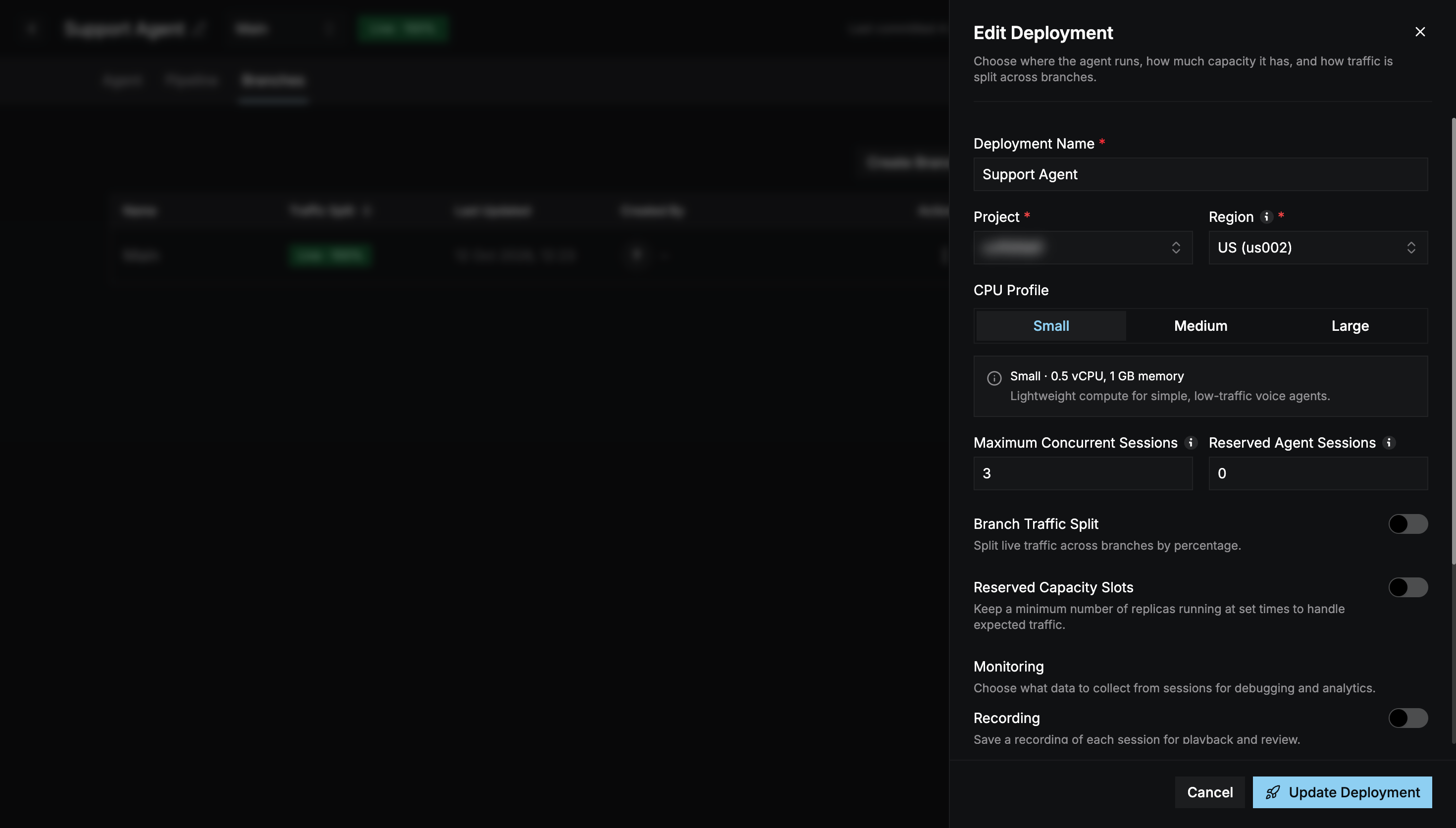
Branch traffic split
Turn on Branch Traffic Split to send live calls to more than one branch by percentage, for example 90% Main and 10% a test branch.- Add branches with Add Branch. Main can’t be removed.
- The percentages must add up to 100%.
- With the split off, Main receives all traffic.
Reserved capacity slots
Turn on Reserved Capacity Slots to keep a minimum number of agent instances running at set times, for example during business hours.- Choose a Timezone.
- Add Slots, each with a name, day, start time, end time, and Minimum Replicas.
- Add Overrides to replace the schedule on specific dates or date ranges, such as holidays or launch days. Leave the times blank to cover the whole day.
Monitoring
Choose what to collect from each session: Recording, Transcripts, Traces, and Logs, plus optional Redaction of sensitive data. See Observability for what each option collects and where to view it.Deploy
Select Deploy Agent, or Update Deployment for an existing deployment. The deployment then appears on the Deployments page.Test your agent
The Preview panel on the right of the builder lets you call your agent from the browser, without a phone.The agent must be deployed at least once before you can test it, even when testing the current draft.
1
Choose a version
Under Test Version, choose:
- Current Draft: includes your uncommitted changes.
- Last Deployed: the version that’s live on this branch.
2
Call
Select Start Test Call and allow microphone access.
3
Talk
Speak to the agent. Select End Call when you’re done.
- The live transcript, including tool calls and the knowledge chunks retrieved for each turn.
- The configuration being tested: models, language, voice, turn detection, VAD, and system prompt.
- Per-turn latency for speech-to-text, end of turn, LLM, time to first byte, and text-to-speech.