

Choose a model
Select a model row to open the model picker.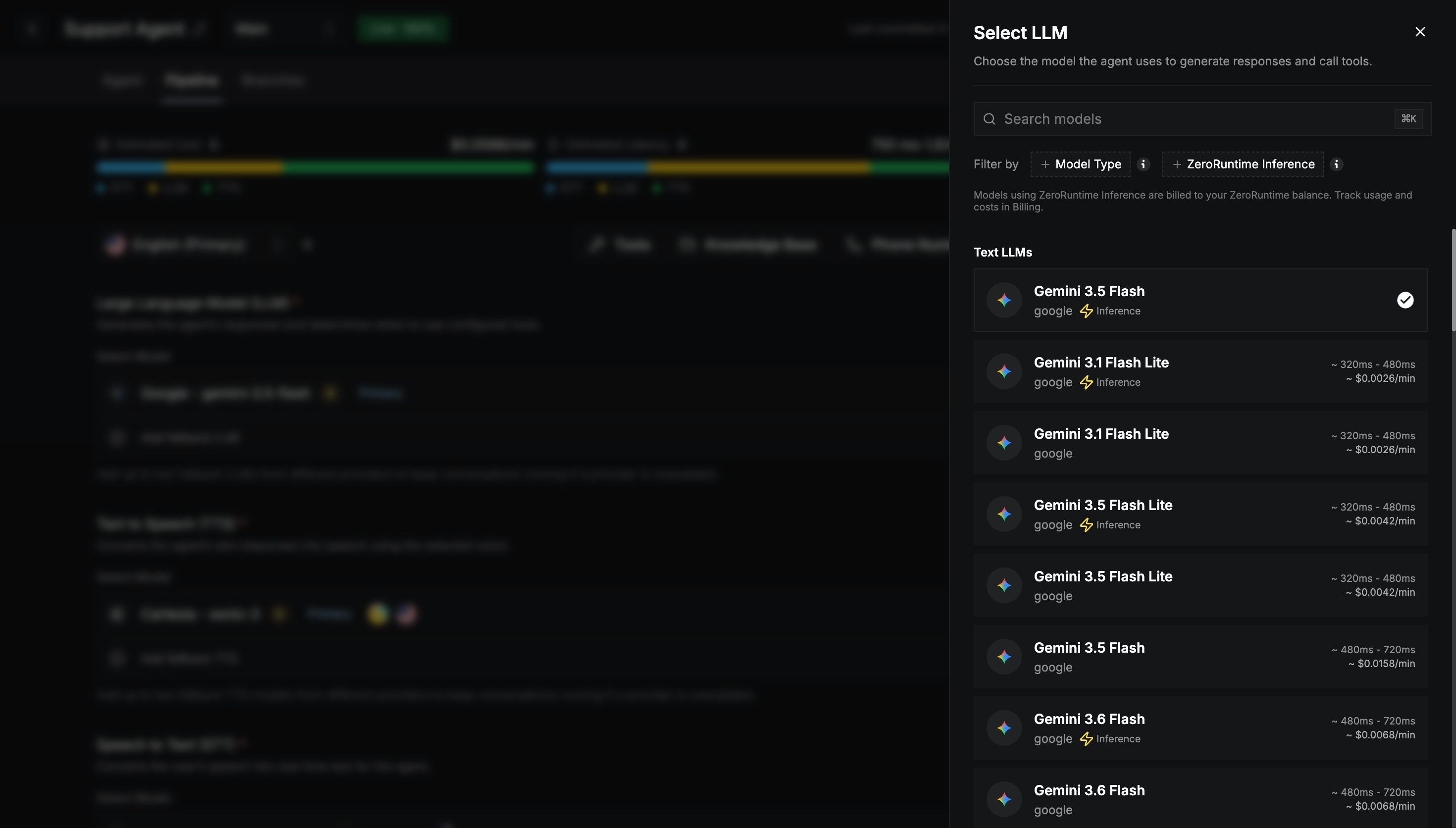
- Model Type:
- Audio LLMs listen and speak directly, without separate STT and TTS. Choosing one makes the pipeline realtime.
- Text LLMs work with the STT and TTS models you select.
- ZeroRuntime Inference: shows only models hosted by Zero Runtime.
1
Advanced settings
Shown only if the model supports extra settings. See Advanced settings below.
2
Language
Choose the language the model should understand or speak.
3
Voice
For TTS and realtime models, browse voices with filters (gender, age, accent, and category) and play previews.
4
API key
For models without the Inference badge, choose or add a secret holding your provider API key. See Use your own API keys.
Models with the ⚡ Inference badge are hosted by Zero Runtime. They need no provider API key, and their usage is billed to your Zero Runtime balance.
Fallback models
Add up to two fallback models for each section with Add fallback LLM, Add fallback TTS, or Add fallback STT. If the Primary model’s provider is unavailable, the agent tries the fallbacks in order, so the conversation keeps going.- Choose fallbacks from different providers than the primary.
- With two fallbacks, drag them to change the order.
- A realtime (audio) primary LLM can’t have fallbacks.
Advanced settings
Settings, ranges, and defaults depend on the model. Common ones are:Use your own API keys
Models with the ⚡ Inference badge need no key. To use a model from your own provider account, such as OpenAI, Anthropic, Google, Deepgram, Cartesia, or ElevenLabs, store its API key as a secret.1
Open the Secrets Library
Select Secrets in the builder header. Search for a provider, or filter by Type (Audio LLM, Text LLM, STT, or TTS).
2
Add a secret
Select Manage Keys next to the provider, then Add Secret. Enter a Secret Name (for example Production key), the API Key, and optional tags. Then select Save Secret.
3
Use it
When you pick a non-inference model, the builder asks you to choose one of the provider’s secrets.