

Add content
1
Open Knowledge Base
In the dashboard sidebar, open Knowledge Base and select Add source.
2
Choose a source type
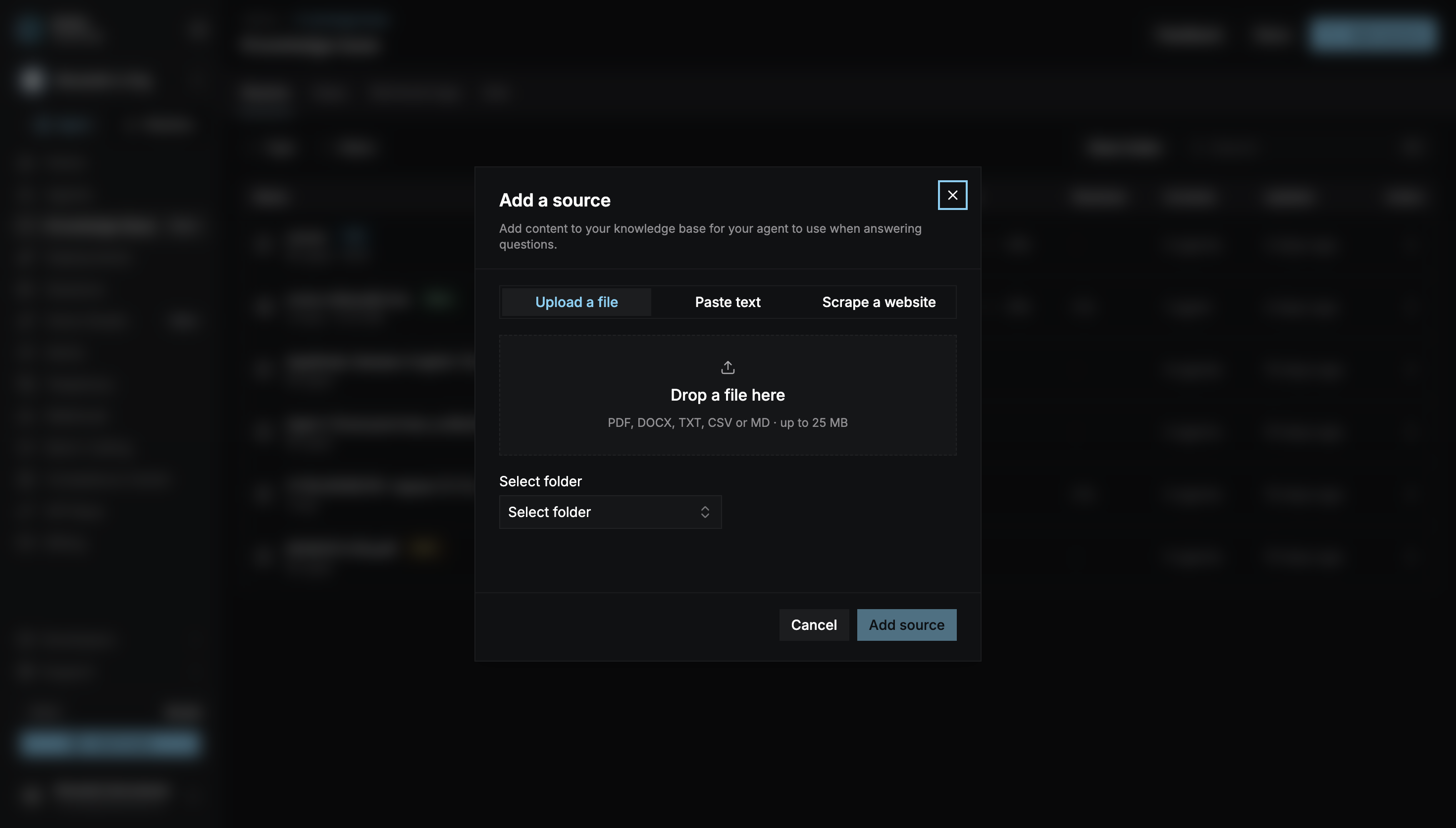
3
Choose a folder (optional)
Use Select folder to put the source in a folder, or create one with Add new folder. Folders make it easy to assign related content together.
4
Add
Select Add source. The source is processed, and its status changes to Ready when the agent can use it.
Assign it to your agent
1
Open the agent's Knowledge Base
In the agent builder, open the Pipeline tab and select Knowledge Base.
2
Assign sources
Hover over a folder or source and select Assign. Assigning a folder attaches everything inside it. Search, filter by Type (Folders, Website, Files, or Text), or show only Unassigned sources to find what you need.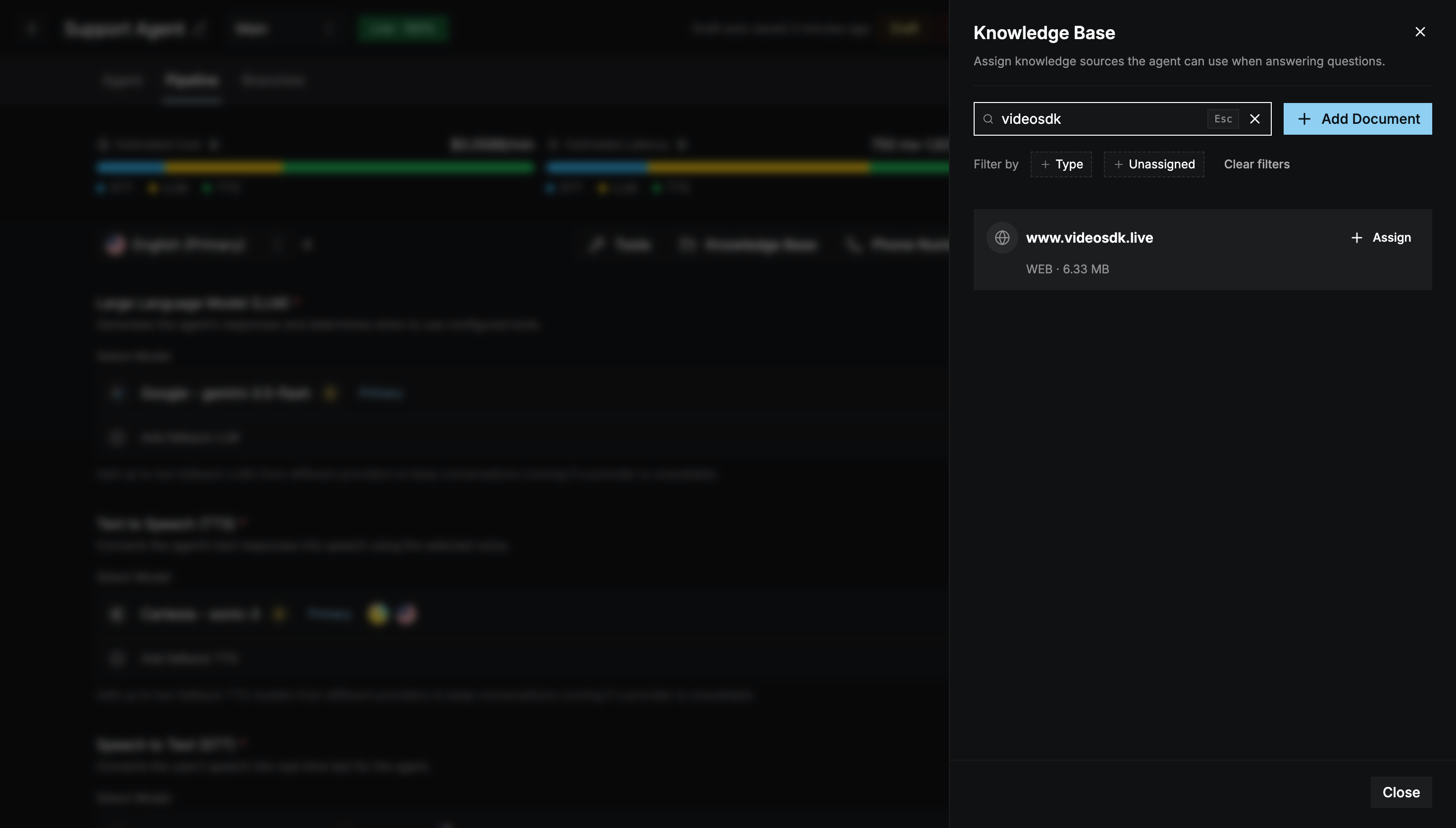
Check that it works
Run a test call and ask a question your content answers. The transcript shows which knowledge chunks the agent retrieved for each turn. The Knowledge Base module also helps you improve your content over time:- Gaps: questions the agent couldn’t answer from your content.
- Retrieval logs: which content was retrieved for each question.
- Ask: try a question against your knowledge base directly.