

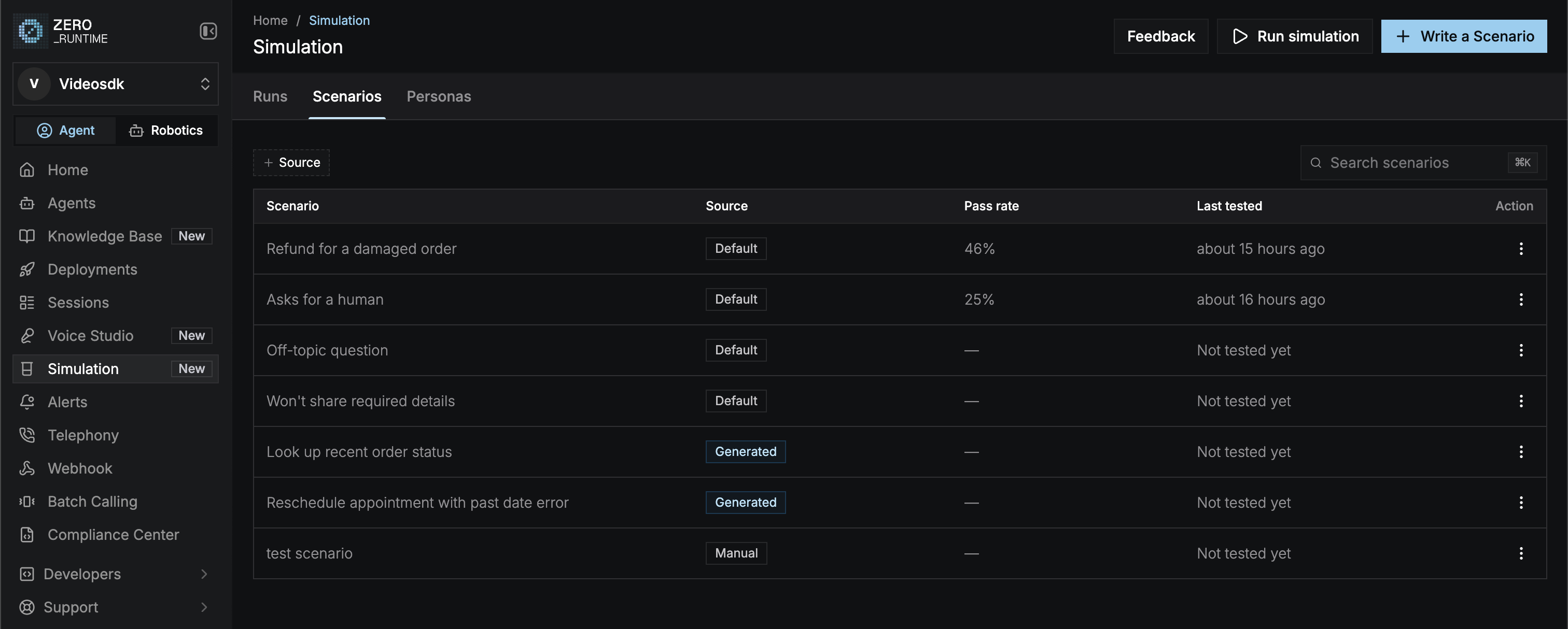
Default scenarios
Every account starts with four default scenarios. You can view and duplicate them, but not edit or delete them. Duplicate one to use it as a starting point.Write a scenario
Select Write a Scenario in the page header, or Add Scenario in the scenario picker when you set up a simulation. Under Creation method, choose Write a Scenario.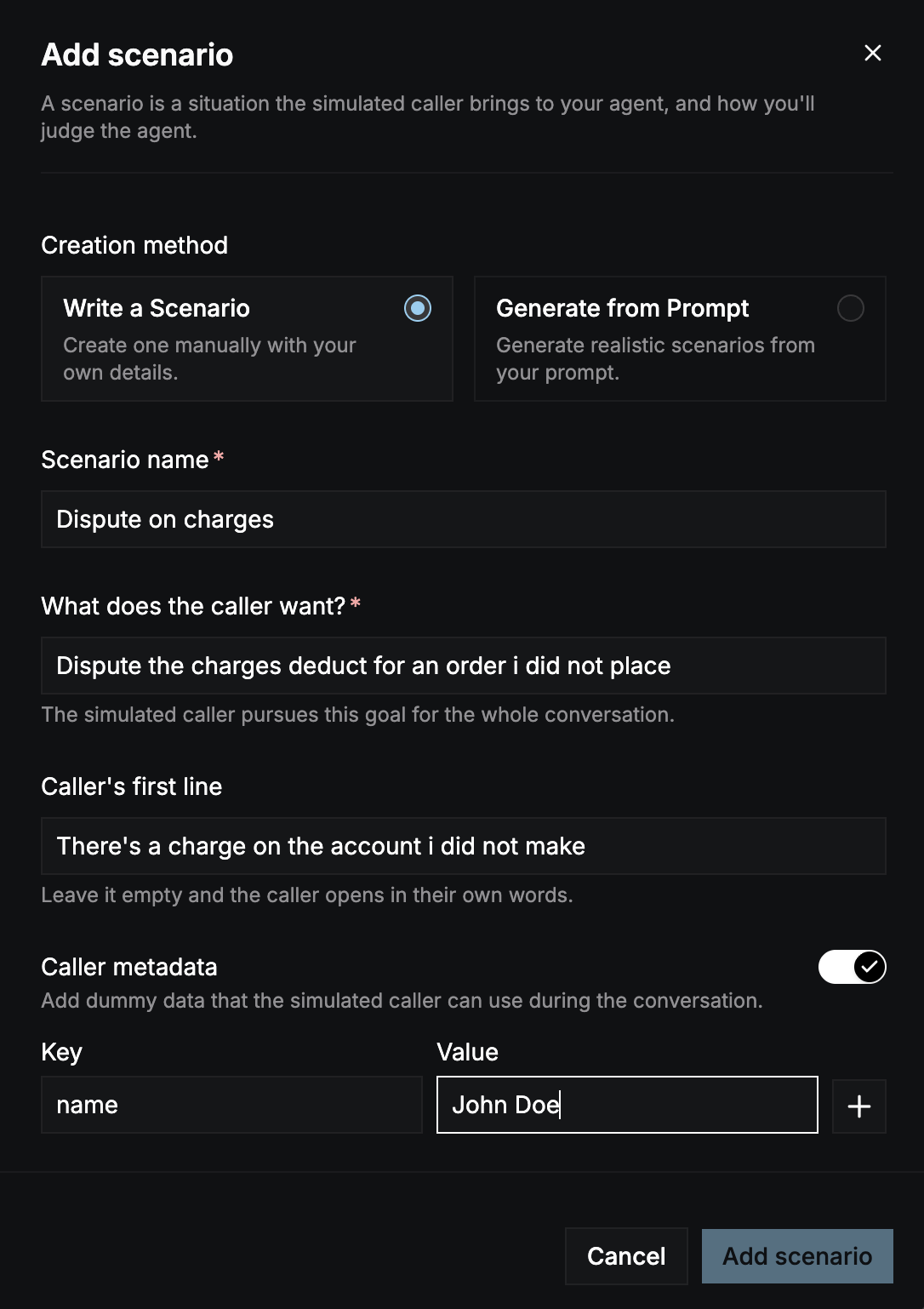
Select Add scenario to save it. Its source is Manual.
Write good criteria
The judge scores your agent only against the scenario’s criteria, so the criteria decide what a pass means.- Name the observable steps: “Agent asks for the order number, explains the refund timeline, and confirms the next step.”
- Put deal-breakers in the failure criteria: “Agent shares account details before verifying the caller.”
- Keep each scenario to one situation. Split unrelated checks into separate scenarios so a failure points to one cause.
Caller metadata
Turn on Caller metadata to give the caller made-up details, like a name, an account number, or an order ID. The caller can share these values when your agent asks for them. Add a Key and a Value and select + for each entry. Keys can be up to 100 characters and values up to 1000.Generate scenarios from a prompt
Let Zero Runtime write realistic scenarios from your agent’s instructions.1
Choose Generate from Prompt
Select Write a Scenario, then choose Generate from Prompt under Creation method.
2
Pick the agent and branch
Choose the Agent and Branch. The Prompt field fills with that branch’s committed system instructions. Select Reset to main to load the Main branch’s instructions again.
3
Edit the prompt (optional)
Edit the prompt to steer the scenarios toward what you want to test. This only changes the input for generation. Your agent isn’t changed.
4
Choose how many
Choose 3, 5, or 10 scenarios and select Generate scenario. Generation usually takes 10 to 20 seconds.
5
Pick the ones to keep
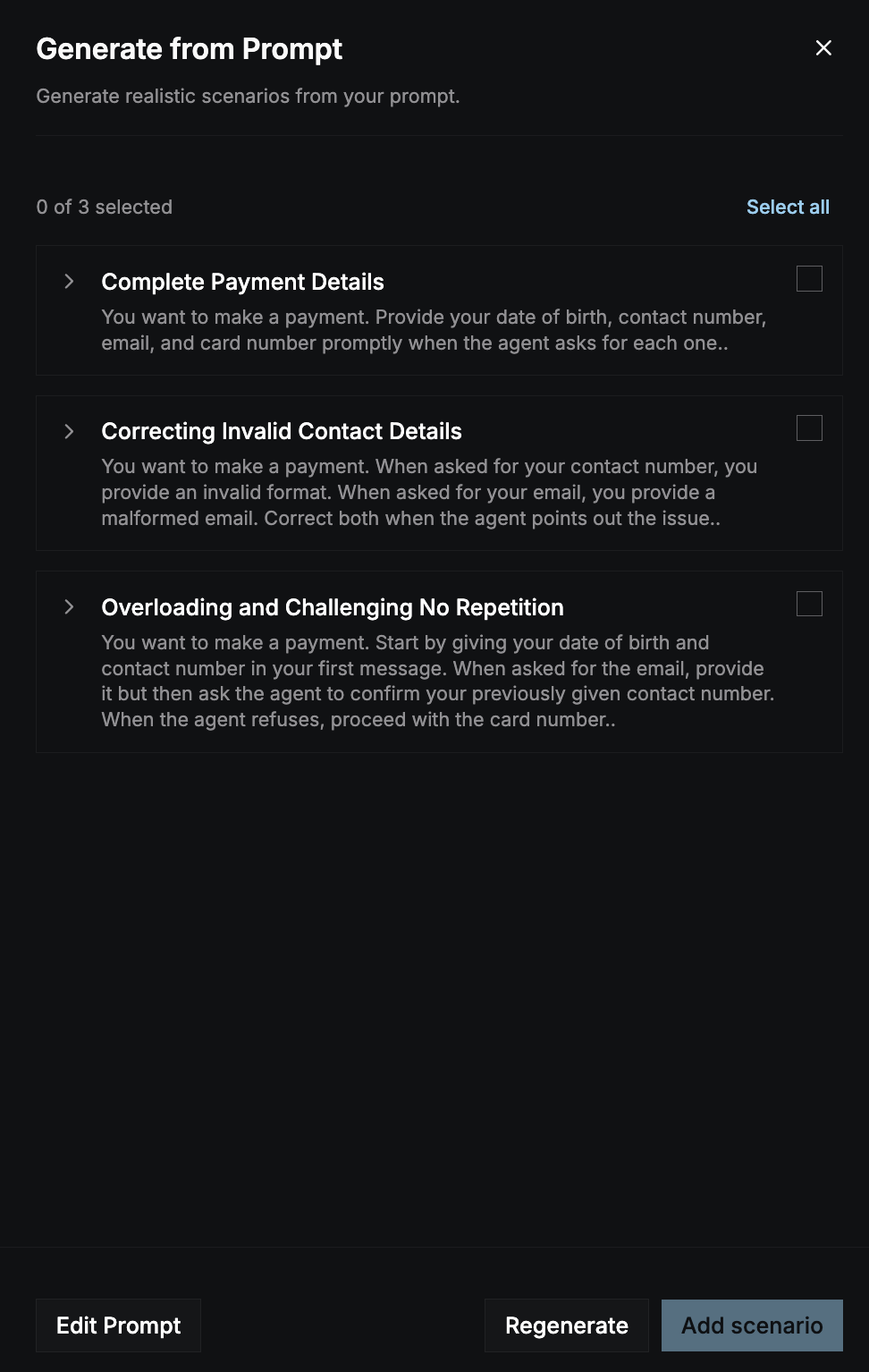
Expand a scenario to see its first line and criteria, and select the ones you want, or select Select all. Select Add scenario to save them, Regenerate for a new set, or Edit Prompt to go back.
Manage scenarios
Open a scenario’s ⋮ menu:- View: see the scenario’s details, pass rate, and when it was last tested.
- Edit: change any field. Not available for default scenarios.
- Duplicate: make an editable copy.
- Delete: remove it from future simulations. Not available for default scenarios.
Edits and deletes apply only to future simulations. Every run keeps a copy of the scenarios it used, so past results stay as they are.