

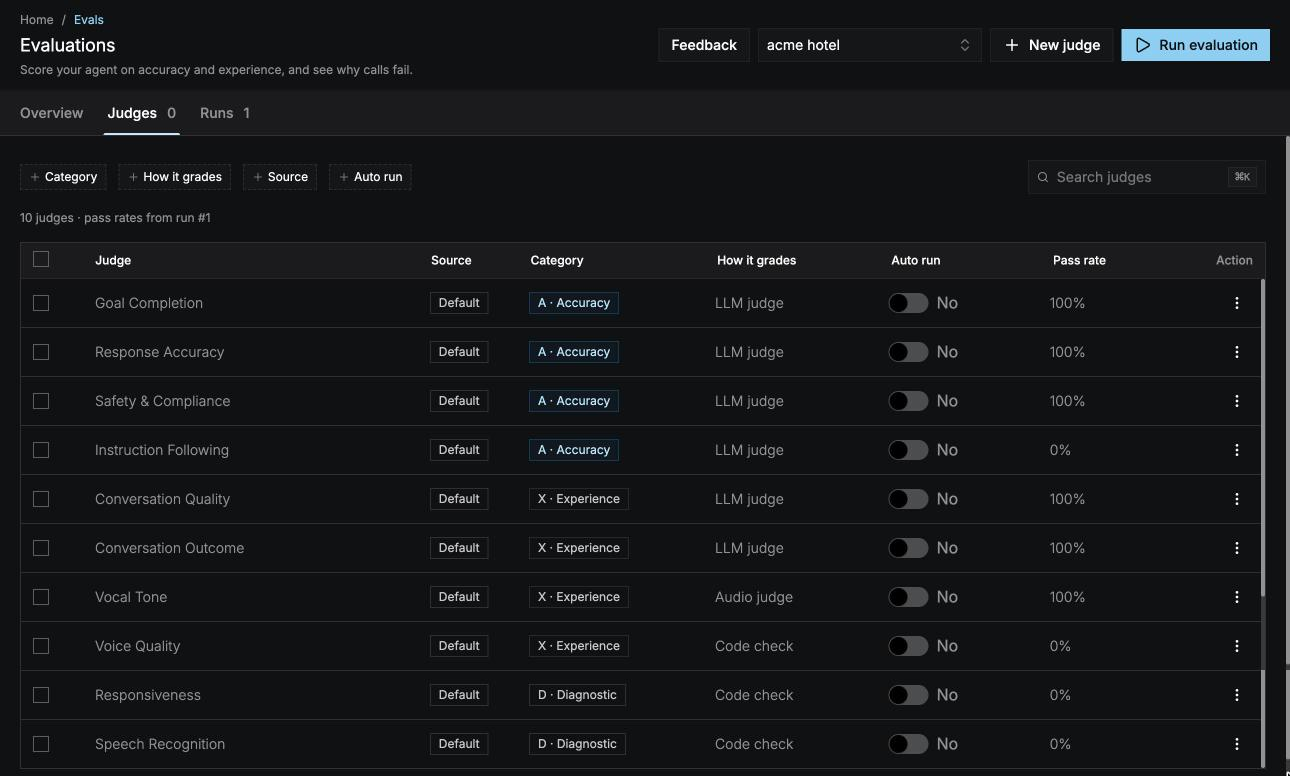
Default and custom judges
Default judges
Open a default judge to see its full criteria and evidence.
How a judge grades
Create a judge
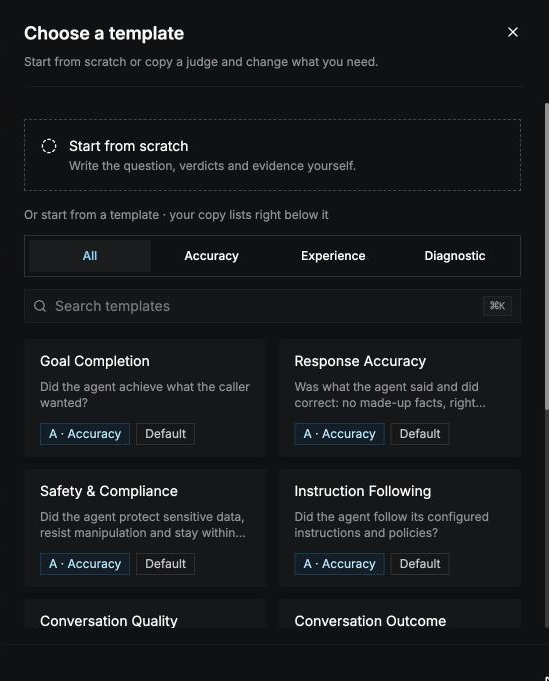
Select New judge in the page header. The panel opens on Choose a template:- Start from scratch to write every field yourself.
- Or pick a judge from the templates to start from a copy of it. Filter templates by category, or search. Your copy lists right below the judge it came from.
LLM and audio judges
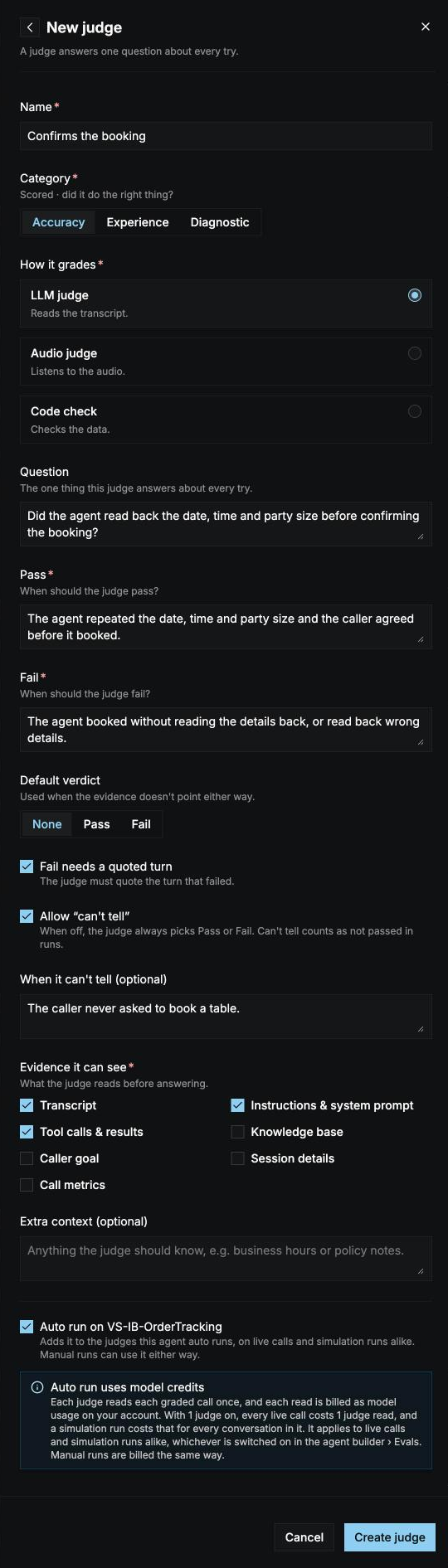
Evidence
New judges start with Transcript, Instructions & system prompt, and Tool calls & results. Audio judges always get the call recording too.
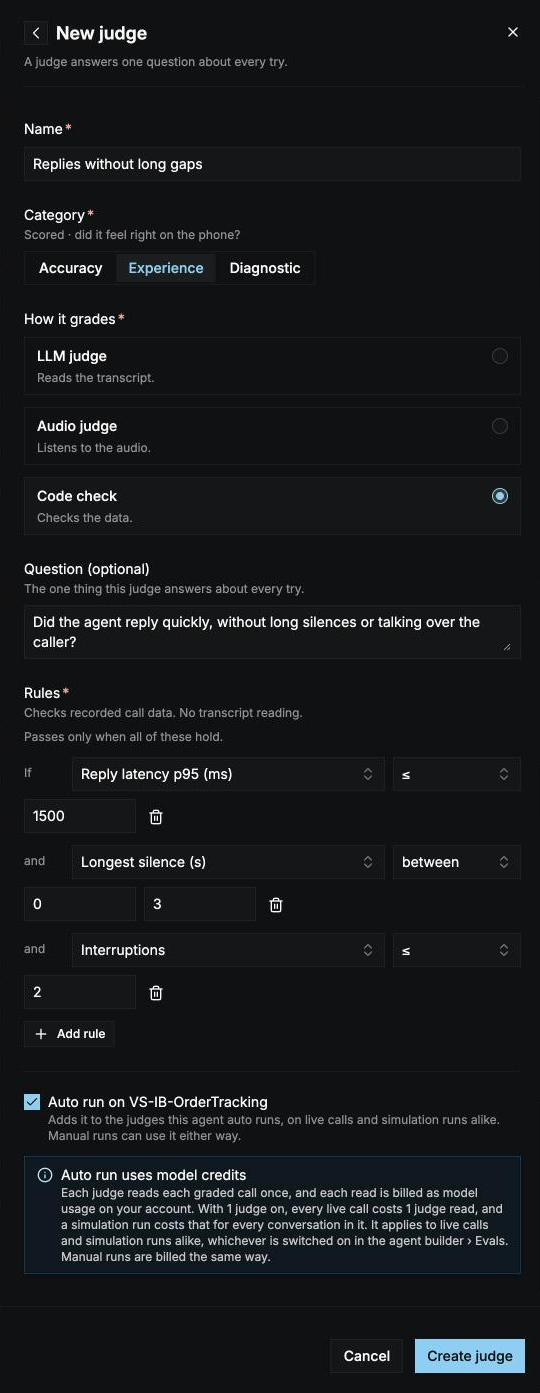
Code checks
A code check has Rules instead of pass and fail criteria. Each rule is a field, an operator (<, ≤, >, ≥, or between), and a number, for example Reply latency p95 (ms) ≤ 1500. The judge passes only when every rule holds. Add up to 20 rules with Add rule.
The fields a rule can check are below. The dashboard shows each one by name, such as Reply latency p95 (ms); the ID is what you use in the CLI.
Run
zeroruntime evals metrics to list every field with its unit. Some fields only work on recorded calls; the list marks them needs the recording.
Auto run and save
At the bottom of the form, Auto run on agent name is on by default. It adds the new judge to the judges that grade this agent’s calls automatically. Turn it off to use the judge only in runs you start yourself. Select Create judge. The judge opens, and you can pick it in any run.Auto run
The Auto run column shows whether a judge grades this agent’s calls automatically:
Use the switch in the row to turn a judge on or off. Which calls the agent auto runs on, and with which scorecard, is set in the agent builder. See Grade calls automatically.
An agent’s auto run needs at least one judge on, so you can’t turn off the last one. Switch the agent’s auto run off instead.
View a judge
Select a judge to open it. You see: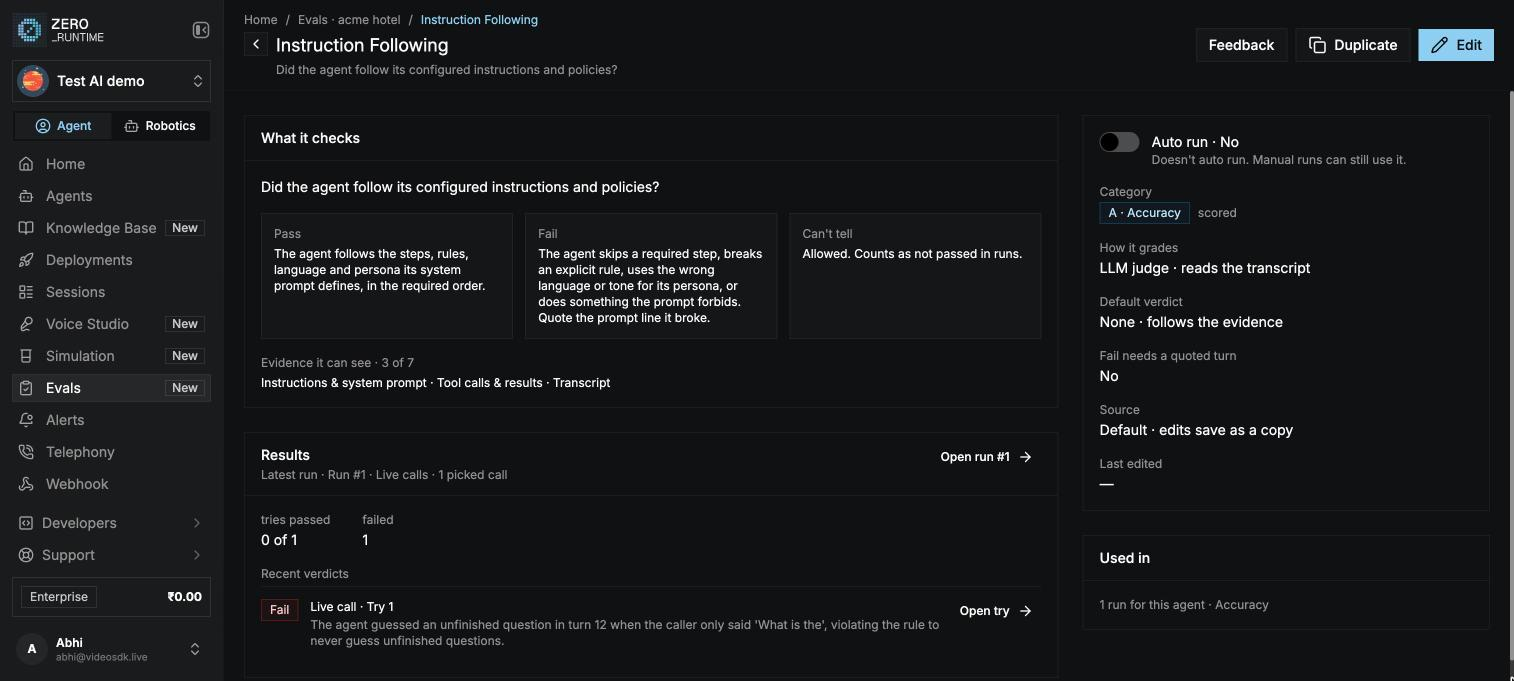
- What it checks: its question, its pass, fail, and can’t tell criteria (or its rules for a code check), its default verdict, and the evidence it can see.
- Results from the latest finished run that used it: how many tries passed, the change since the previous comparable run, how many failed or couldn’t tell, and its most recent verdicts with their quotes and reasons. Select Open try to see a call.
- Its auto run switch, source, category, how it grades, and when it was last edited.
- Used in: how many of this agent’s runs it graded.
Manage judges
Open a judge’s ⋮ menu:- Open: see the judge’s details and results.
- Edit: change any field except how it grades. Editing a default judge opens a copy; select Save as my copy to save it as a new custom judge.
- Duplicate: make an editable copy, listed right below the original. Copies don’t auto run until you turn them on.
- Turn on auto run / Turn off auto run.
- Delete: remove a custom judge. Default judges can’t be deleted. This can’t be undone.
Edits and deletes apply only to new runs. Every run keeps the version of each judge it was graded with, so past results stay as they are.