

- Kind: what part of the agent it tests, such as a full call or one LLM reply. See Item kinds.
- Input: what to replay, such as the caller’s goal or the conversation so far.
- Expected result: the checks that must pass, such as the agent called
lookup_order.
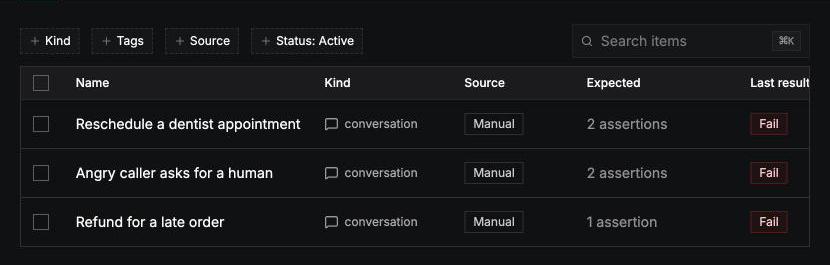
Add items
Items you add yourself are active as soon as you save them, because you’re the reviewer. Imported, generated, and auto-drafted items wait in the review queue until someone approves them.
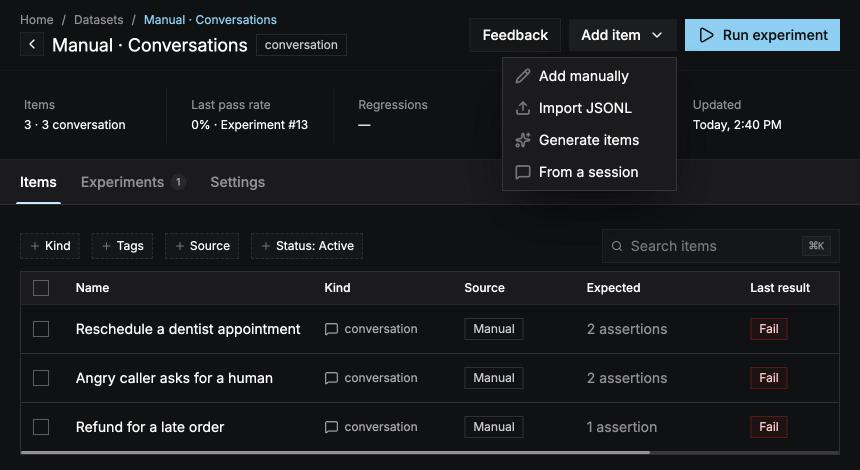
Add manually
Select Add item › Add manually. Pick a Kind, fill in the input and the expected result, and select Add item. Until the item is complete, the footer lists what’s still missing.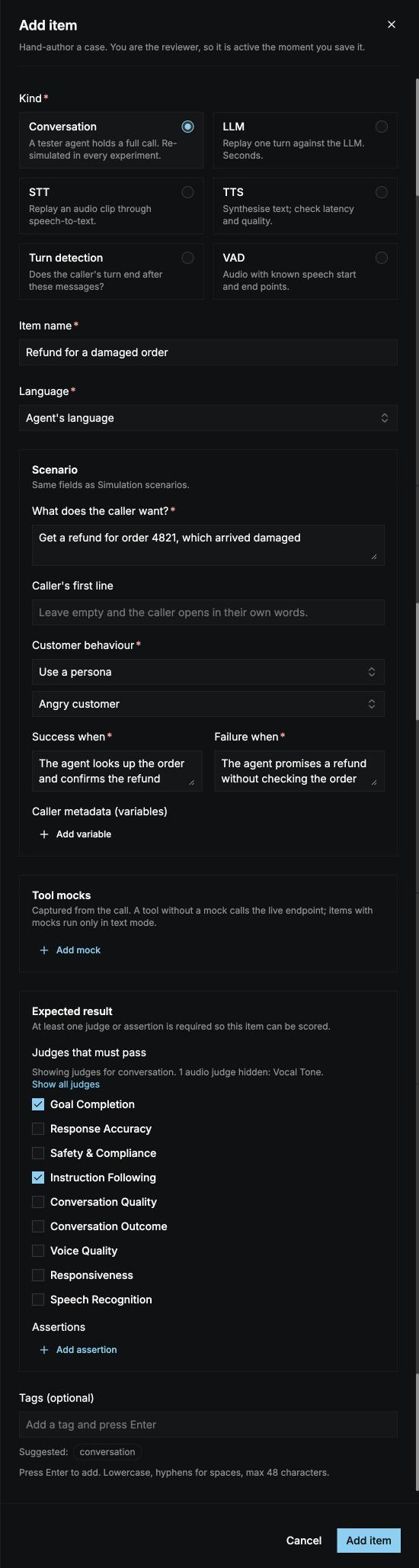
From a session
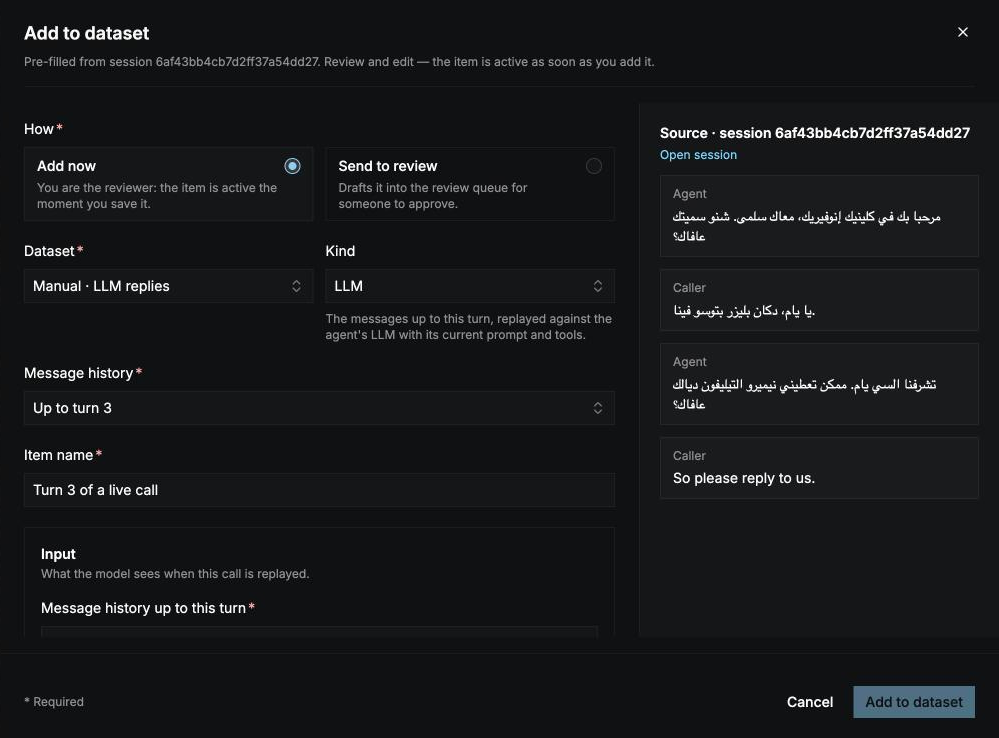
Open a session in Sessions and select Add to dataset. The item is built from the call, and opens in the item form for you to check and edit before you save it.1
Dataset
Pick a dataset, or choose + New dataset to create one on the spot.
2
How
- Add now: you’re the reviewer, so the item is active the moment you save it.
- Send to review: drafts it into the review queue for someone else to approve. Add a note on what went wrong.
3
Kind
Conversation, LLM, STT, Turn detection, or VAD. TTS items can’t be built from a session; add them by hand or import them.
4
Message history
Pick the turn to build the item from, for example Up to turn 6. The turns before it become the item’s history, and the panel on the right shows exactly what the item takes from the call.
Judges that ran on the session are suggested as the item’s checks. For an STT item, the transcript from the call is filled in as the expected transcript; correct it if the call misheard the caller.
If the dataset already has an item built from this call, a notice names it, and the button changes to Add anyway.
From a trace span
Open a session’s Traces tab to add one exact step of the call. Each turn, and each speech-to-text, LLM, turn detection, and VAD step inside it, has an Add to dataset button. The item’s kind and turn are filled in from the step you picked, so you go straight to reviewing it. Other steps, such as tool calls or knowledge base lookups, can’t become items. Text-to-speech steps can’t either yet; hover the disabled button to see why.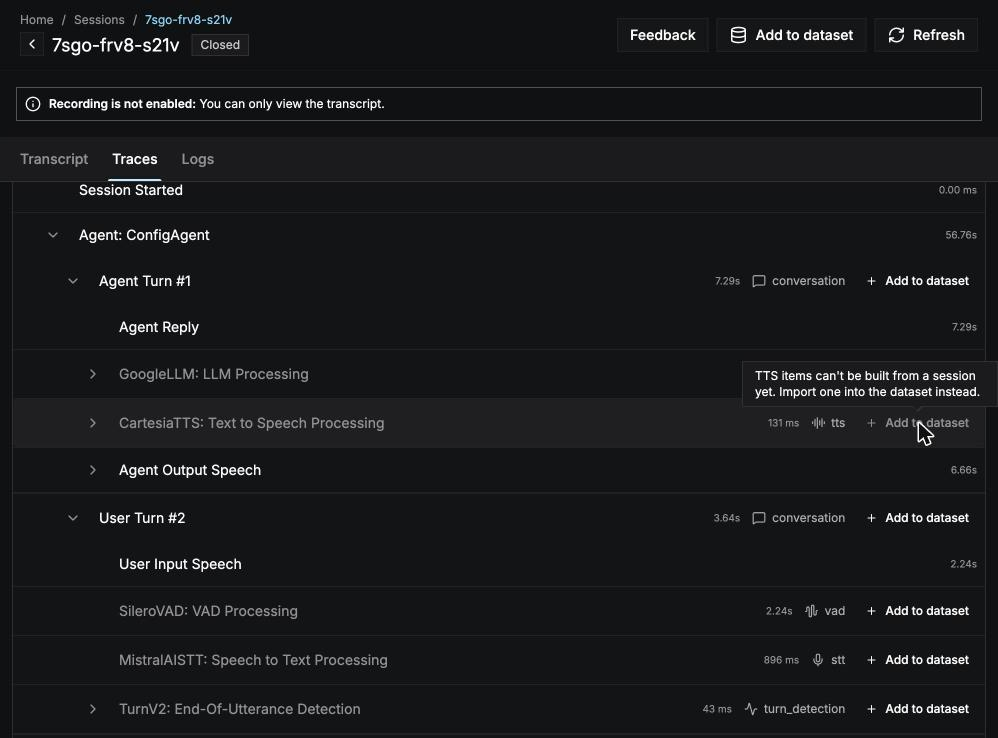
From a simulation
Open a simulated conversation in Simulation and select Add to dataset. A whole simulated conversation becomes a Conversation item. Judges that failed on the conversation are filled in as the item’s checks. You can do the same from an experiment’s results: select the Add to dataset icon at the end of a conversation item’s row, or Add to dataset in its result. See Review results.Import JSONL
Select Add item › Import JSONL and upload a.jsonl file of up to 10 MB, with one item per line. Select Download example file for a file to start from.
Each line is one item, written as JSON on a single line. Here is one item spread over several lines so it’s easier to read:
Fields
The
input fields for each kind:
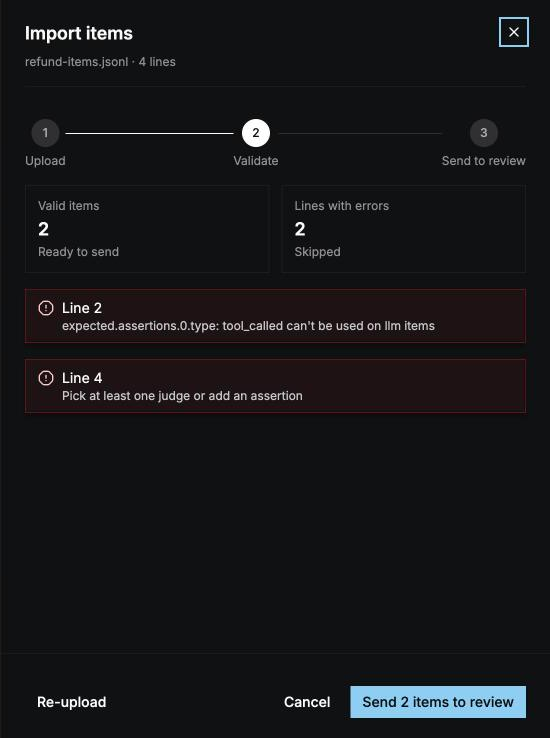
The file is checked before anything is added. You see how many items are valid and which lines have errors, with the reason for each. Lines with errors are skipped. Select Re-upload to try a fixed file, or Send N items to review to send the valid ones to the review queue.
Generate items
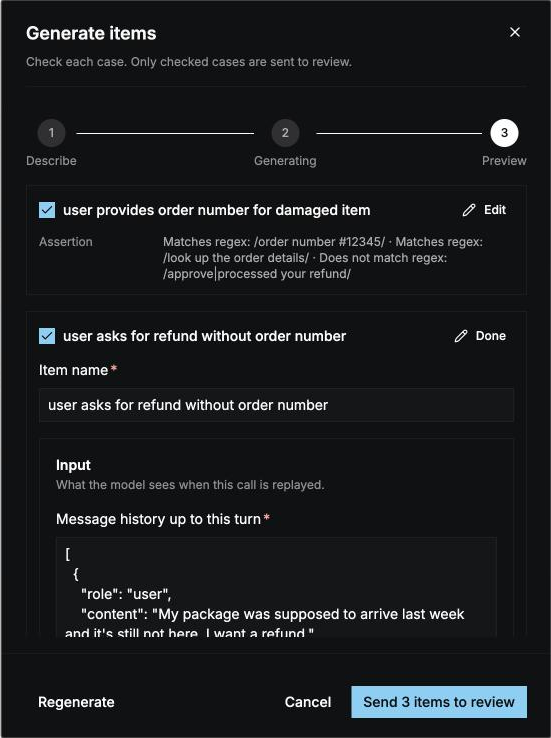
Select Add item › Generate items to have a model write items from your agent’s prompt.
You need to pick an agent or paste a prompt, so the items fit what your agent does. Select Generate N items; it takes up to a minute. Then:
- Tick the items you want to keep.
- Select Edit on any you want to change.
- Select Send N items to review.
Input by kind
The fields you fill in depend on the item’s kind.Conversation
The same fields as a Simulation scenario:Items with tool mocks, or with history from a session, run only in Text only mode.
LLM
STT (speech-to-text)
TTS (text-to-speech)
Turn detection
VAD (voice activity detection)
Expected result
The expected result is how an item is scored. Every item needs at least one check, or it can’t be saved:
An item passes an iteration when every judge and every assertion on it passes.
Judges that must pass
Tick the judges that must pass. Only Conversation and LLM items use judges.- LLM items are scored by LLM judges only.
- Conversation items can use LLM judges and code checks. Audio judges only score items run in Audio mode.
Expected output
What the stage should produce. For an STT item, this is the correct transcript of the clip, which Max WER is measured against. For an LLM item, it counts as a check on its own. TTS and turn detection items show the field too, but they still need an assertion.Assertions
Assertions are precise, automatic checks. Use them for anything you can state exactly, like a tool call or a time limit, and use judges for things that need judgement, like whether the agent was polite. Each kind has its own assertions:Tags
Tag items to run only some of them in an experiment, for examplerefund or edge-case. Tags are lowercase, with hyphens for spaces, up to 48 characters each.
View an item
Select an item to open it. You see its kind, source, status, and language, its input, its expected result, its tags, and its Recent results in past experiments. Select Open session or Open conversation to see the call it came from.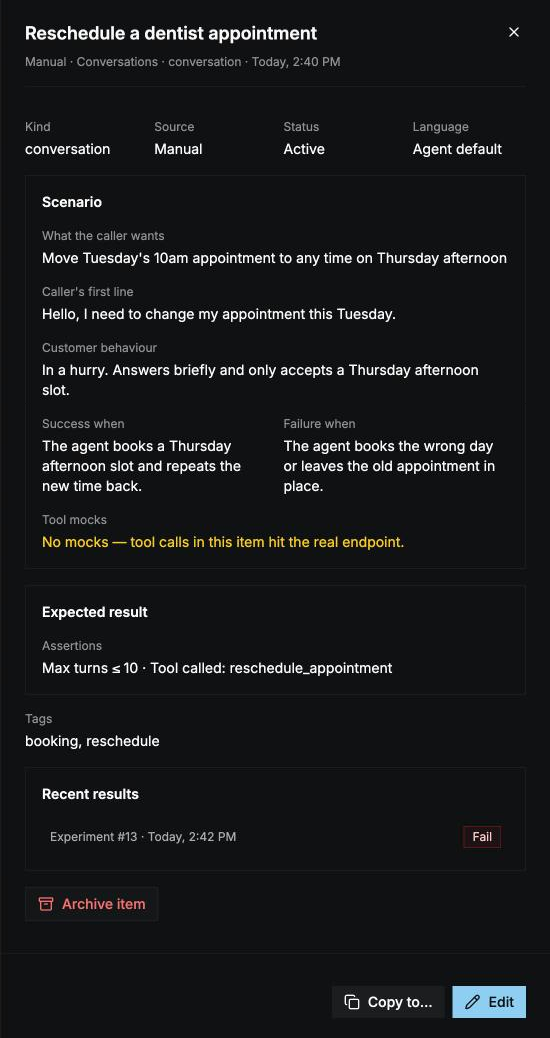
Manage items
Open an item’s ⋮ menu:- Open item: see the item and its recent results.
- Edit item: change anything except the kind. Edits apply from the next experiment; past experiments keep their copy.
- Copy to another dataset: an item belongs to one dataset, so the copy gets a new ID and keeps its source.
- Archive item: it stops running in new experiments. Past results that used it stay as they are.
- Restore: make an archived item active again.