

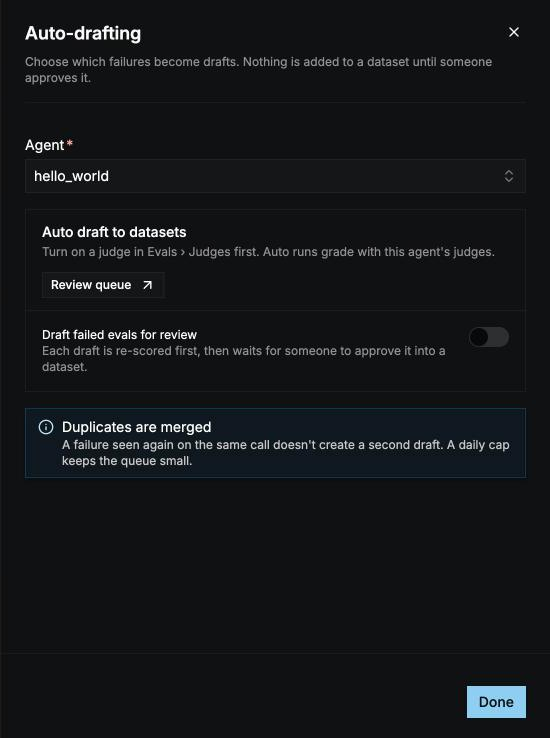
- A judge fails on a live call, or a tool returns an error, and auto-drafting is on for the agent.
- Someone adds a session with Send to review. See From a session.
- Someone imports or generates items.
Auto-drafting
Auto-drafting turns failures on an agent’s live calls into drafts for you, so you don’t have to hunt for bad calls yourself. Select Auto-drafting settings on the Review queue tab, and pick the agent. You can also set it up in the agent builder’s Evals tab, or on the Judges tab of Evals. Each change saves at once.Auto-drafting works from graded live calls. Before you can switch it on, the agent needs at least one judge on, and either auto run on live calls switched on or evaluations run on its live calls.
Re-score
Judges sometimes get it wrong. So before you review an auto-drafted item, its judges and assertions run again on what the agent actually said in the original call. This is the re-score, and it tells you whether the failure is real:
The queue lists confirmed failures first, so the most useful drafts are at the top.
The queue
Each draft shows its name, why it was drafted (for example Failed: Goal Completion, Tool error: lookup_order, or Flagged), its kind, its re-score, its source, its target dataset, and when it was created. Filter by Source, Kind, Tags, Reason, and Target dataset, or search. When new drafts arrive while you’re on the page, select Load latest to see them.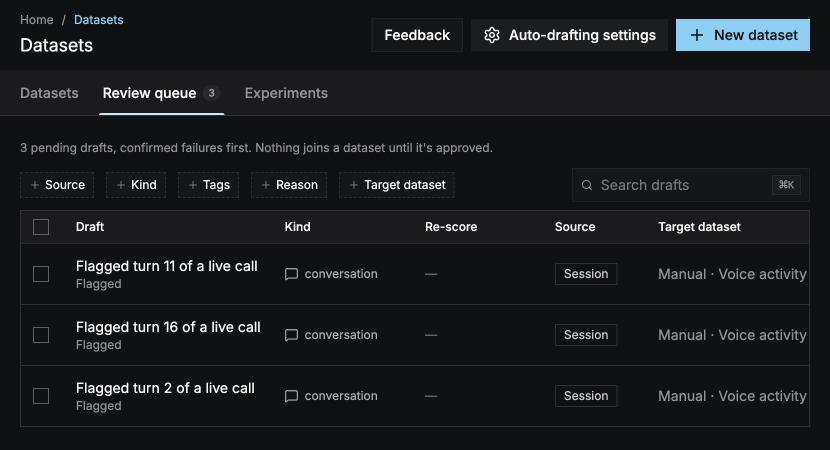
Review a draft
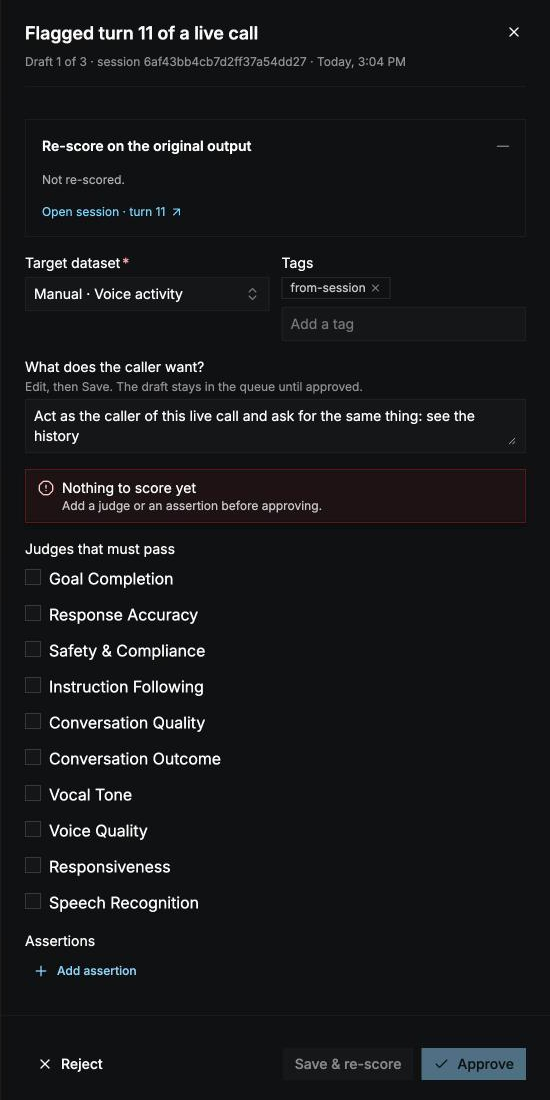
Select a draft, or Review in its ⋮ menu, to open it. Use the arrows to move through the queue.1
Check the re-score
See each judge and assertion’s verdict on the original output, with its reason.
2
Pick the target dataset
Required. Drafts from auto-drafting start on the agent’s target dataset, if one is set.
3
Adjust the item
Edit the input, tags, judges, and assertions like any item. Drafts from tool errors have no judges, so add a judge or an assertion. STT and VAD drafts need a recording before you can approve them.
4
Save or approve
Select Save & re-score to keep your edits and run the re-score again with them; the draft stays in the queue. Select Approve to save your edits and add the item to the dataset.
Reject a draft
Select Reject in a draft’s ⋮ menu, and pick a reason:- Not a real failure (judge too strict)
- Duplicate of an existing item
- Not worth testing
- Other
Act on several drafts
- Approve confirmed (N) approves every confirmed failure on the page that has a target dataset.
- Tick drafts, then select Approve N selected or Reject.