

lookup_order before refunding. Running your agent against the whole dataset is called an experiment. It shows which items pass, and which ones passed last time but fail now.
Most items come from real problems. When a live call goes wrong, add it to a dataset so you notice if the same mistake ever comes back. You can also write items by hand, import them from a file, or have them generated from your agent’s prompt.
Open Datasets in the sidebar. The page has three tabs: Datasets, Review queue, and Experiments.
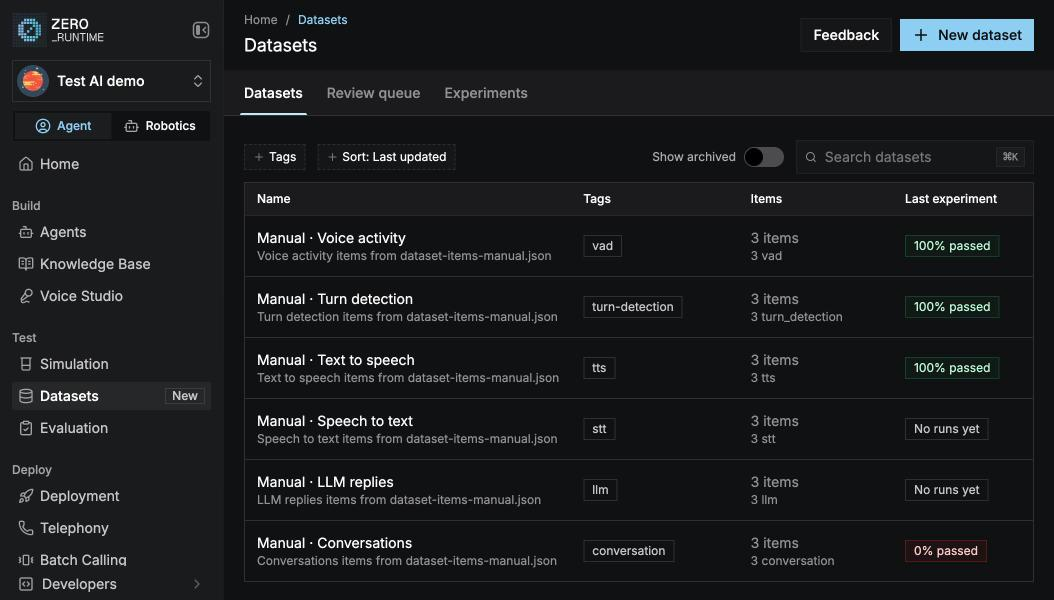
Core concepts
Item kinds
Every item has a kind. A Conversation item tests the whole agent in a full simulated call. The other kinds test one stage of the agent’s voice pipeline on its own, which is much faster.When to use datasets
Datasets use the same judges as Evaluations, and the same personas and modes as Simulation.
Before you start
- Create an agent. Experiments run an agent against a dataset.
- Deploy the branch you want to test. An experiment tests a deployed branch, not your draft. See Deploy an agent.
- Have at least one judge, if you want items scored by judges. See Judges.
- Have enough credits. Conversation items are billed like simulated calls, and judges are billed as model usage.
How it works
1
Create a dataset
Select New dataset, give it a name, and optionally a description and tags.
2
Add items
Add a failed call from a session, a trace span, or a simulated conversation, write an item by hand, import a JSONL file, or generate items. See Items.
3
Review drafts
Imported items, generated items, and failed live calls wait in the review queue. Approve the ones worth keeping. See Review queue.
4
Run an experiment
Pick the agent and branch to test, and start the run. See Run an experiment.
5
Review the results
See which items passed, which regressed against the baseline, and why. See Review results.
Create a dataset
Select New dataset in the page header and fill in: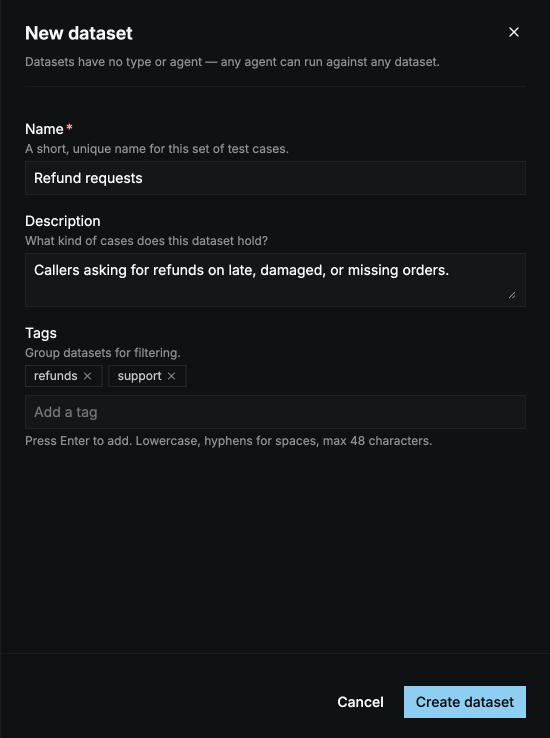
The datasets list
The Datasets tab lists every dataset with its tags, how many items it has of each kind, its latest experiment’s pass rate, when it was last updated, and who created it. Search by name, filter by Tags and Created by, and sort by Last updated, Newest, or Name A–Z. Open a dataset’s ⋮ menu to Open dataset, Run experiment, open its Settings, or Archive dataset.A dataset
Select a dataset to open it. The header shows its tags and the Add item and Run experiment buttons. Below that you see:- Items: how many items it has, of each kind.
- Last pass rate: the result of the latest experiment.
- Regressions: items the latest experiment broke, compared with its baseline.
- Pending review: drafts waiting in the review queue for this dataset.
- Updated: when it last changed, and by whom.
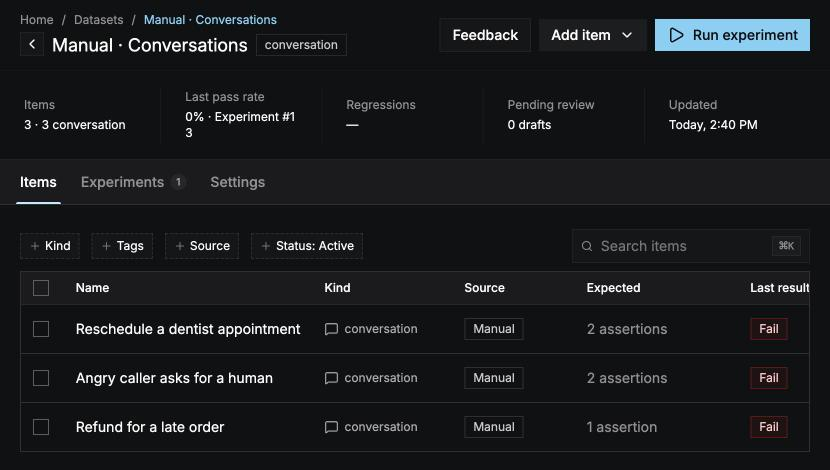
- Items: every item in the dataset. See Items.
- Experiments: every experiment run against it. See Review results.
- Settings: change the name, description, and tags, or archive the dataset.
Archive a dataset
Select Archive dataset in the dataset’s ⋮ menu or on its Settings tab.- Its items become read-only and can’t run in new experiments.
- Past experiments and their results stay available.
- It’s hidden from the list. Turn on Show archived to find it.
- Nothing is deleted.
Limits
Items
Add test cases and say what must pass.
Review queue
Approve failed calls, imports, and generated items.
Run an experiment
Run any agent against a dataset.
Review results
Find regressions and see why an item failed.